# Initial Configuration
Initial setup and navigation tasks.
# Log In and Select a Tenant
Use the MiRTA PBX web interface to sign in, then select the tenant whose configuration you want to manage.
MiRTA PBX login page.## Log in
1. Open the MiRTA PBX web address provided by your administrator.
2. Enter your **Username** and **Password**.
3. Select **Login**.
If your account requires a second authentication step, complete the security-code prompt before continuing.
## Select the tenant after login
If your user is enabled for more than one tenant, MiRTA PBX can show a **Tenant select** dialog immediately after login. Select the tenant you want to work on, then select **Connect**.
Only tenants authorized for your user account are shown. If the expected tenant is missing, ask an administrator to check your user-to-tenant assignments.
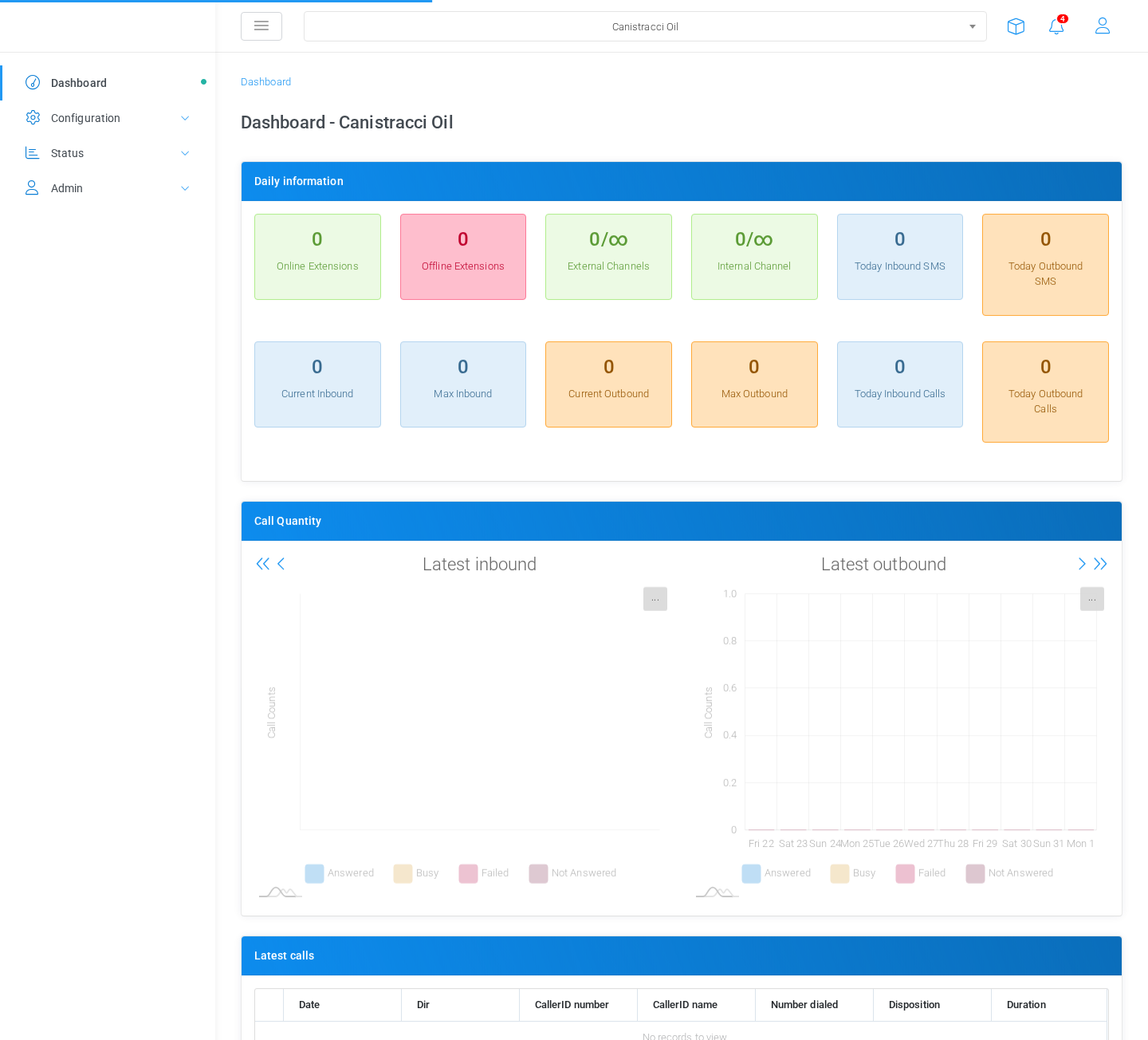The selected tenant is shown in the top bar.## Change the current tenant
After login, the current tenant is shown in the selector in the top bar. To work on a different tenant, open this selector and choose the tenant from the list. MiRTA PBX reloads the work area using the selected tenant.
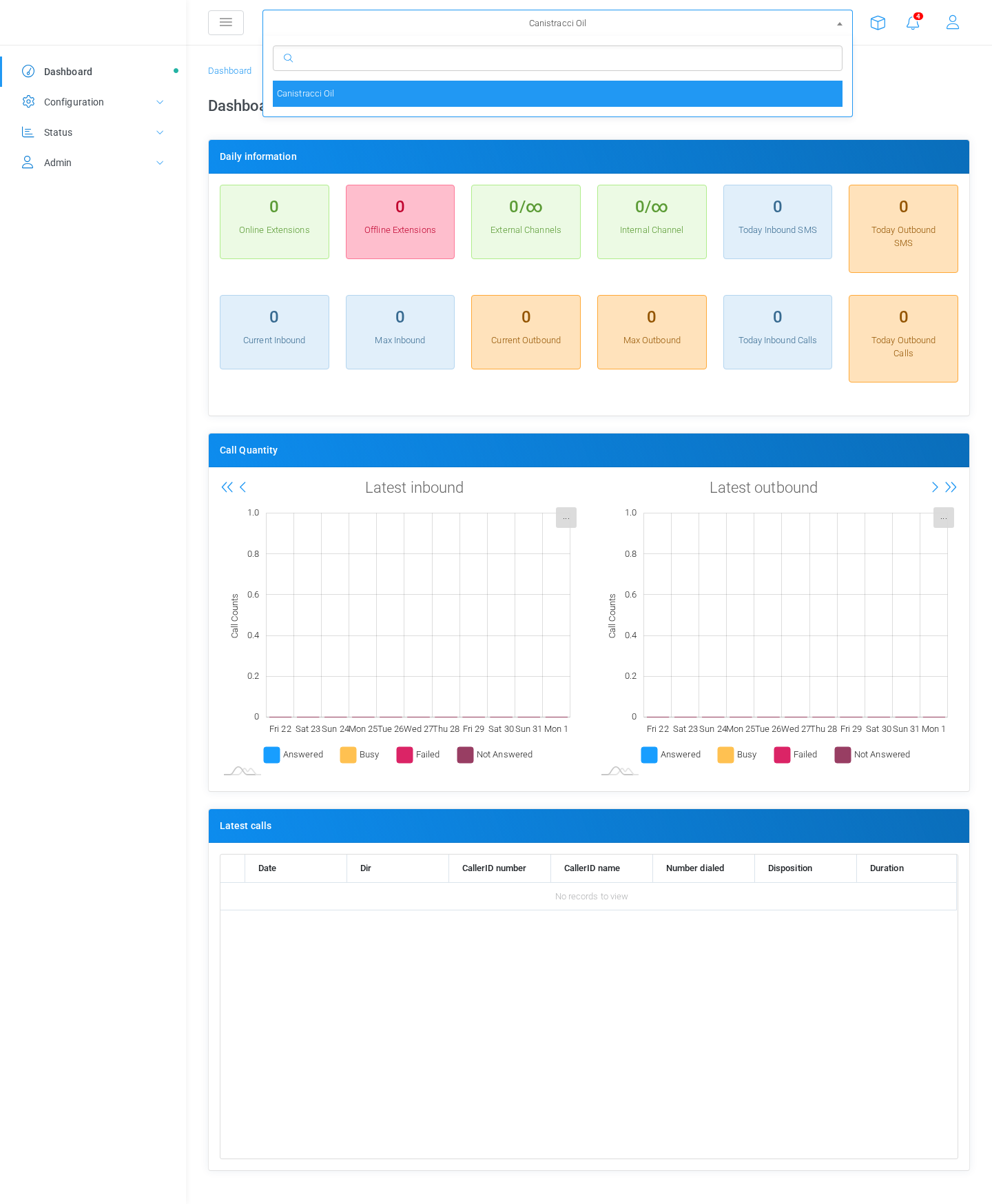Open the top-bar tenant selector to switch tenant.The selected tenant controls the records shown and the configuration changes you make. Before editing extensions, DIDs, routing, media files, or other tenant-level settings, verify that the top-bar selector shows the correct tenant.
## When the selector is not available
If you do not see the tenant selector, your account may be enabled for only one tenant, or your permissions may limit tenant switching. Continue using the tenant assigned at login, or contact an administrator if you need access to another tenant.
# Create a Tenant
Create a tenant before adding tenant-specific extensions, DIDs, routing, media, and user permissions. A tenant is the top-level container for a customer's PBX configuration.
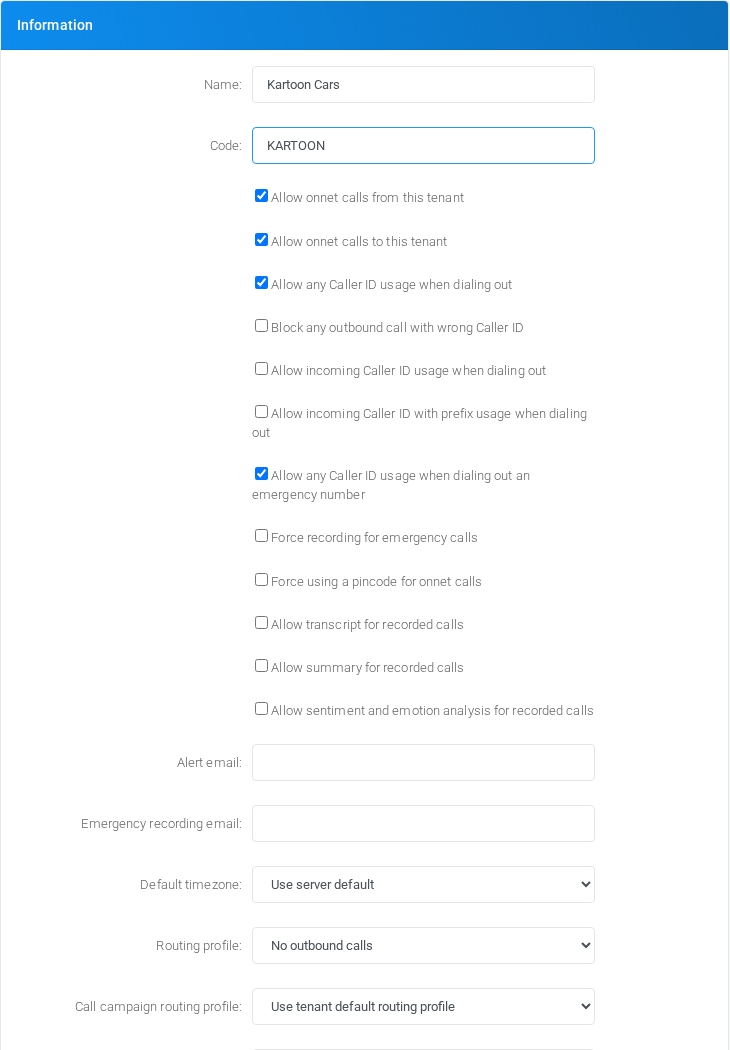New tenant form filled with Kartoon Cars and tenant code KARTOON.## Open the tenant form
1. Log in with an administrator account that can add tenants.
2. Open **Admin** > **Tenants**.
3. Select **Add** or **New** to open **Define Tenant**.
## Enter name and code
1. In **Name**, enter **Kartoon Cars**.
2. In **Code**, enter **KARTOON**.
3. Review the defaults for calling, routing, parking, billing, limits, and storage.
4. Select **Save**.
The tenant code must be unique. Use an alphabetic code such as **KARTOON**. Avoid numbers, spaces, hyphens, and underscores unless your deployment has a specific reason to use them.
## Why the code matters
MiRTA PBX uses the tenant code when creating extension usernames. The username format is:
```
-
```
For example, with tenant code **KARTOON**, an extension username **201** becomes **201-KARTOON**. This keeps usernames unique across tenants even when two tenants use the same extension numbers.
After a tenant has been saved, the code field becomes read-only in the tenant form. Use the **Change** button beside the code only when you intentionally need to rename the tenant code, because extension usernames and related references depend on it.
# Configure a Provider
A provider represents a trunk or external service used by MiRTA PBX for outbound calls, inbound call handling, SMS delivery, or other carrier-side functions. The screenshots on this page use fictional values and should be replaced with the values supplied by the carrier or service provider.
## Open the Provider List
Open **Admin > Providers**. The list shows each configured provider, its peer name, technology, host, penalty, status, current inbound and outbound channel counters, and available actions.
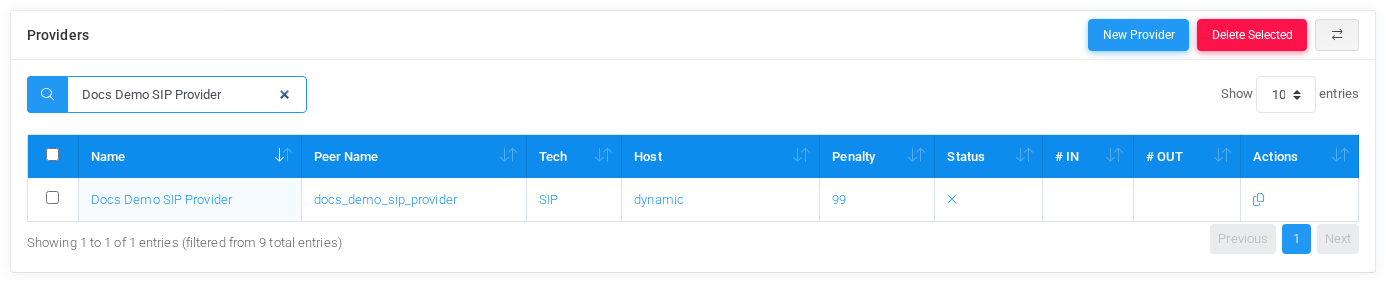Provider list filtered to the documentation example provider.Select **New Provider** to create a carrier trunk or SMS gateway. Existing providers can be opened from the provider name or peer name links.
## Information
Start with the provider identity. Use a descriptive **Name** that operators recognize, and use a stable **Peer Name** that matches the SIP peer, PJSIP endpoint, IAX peer, local route, or SMS gateway identifier used by the system. Choose the technology and set the status.
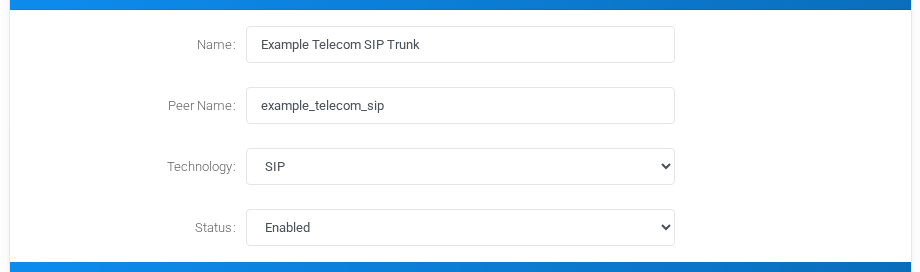Provider Information block filled with fictional SIP trunk values.- **Enabled** allows inbound and outbound use.
- **Disabled** keeps the provider configured but unavailable.
- **Only Inbound** hides outbound routing options and is useful when the carrier should only deliver calls into the PBX.
## Outbound Calls
Use outbound settings to normalize calls before sending them to the provider. Additional headers can be sent to SIP, PJSIP, IAX2, or SMS providers. Digits to add and digits to remove are applied during outbound routing. Caller ID presentation, caller ID modification, and caller ID regex control which caller identity the provider receives.
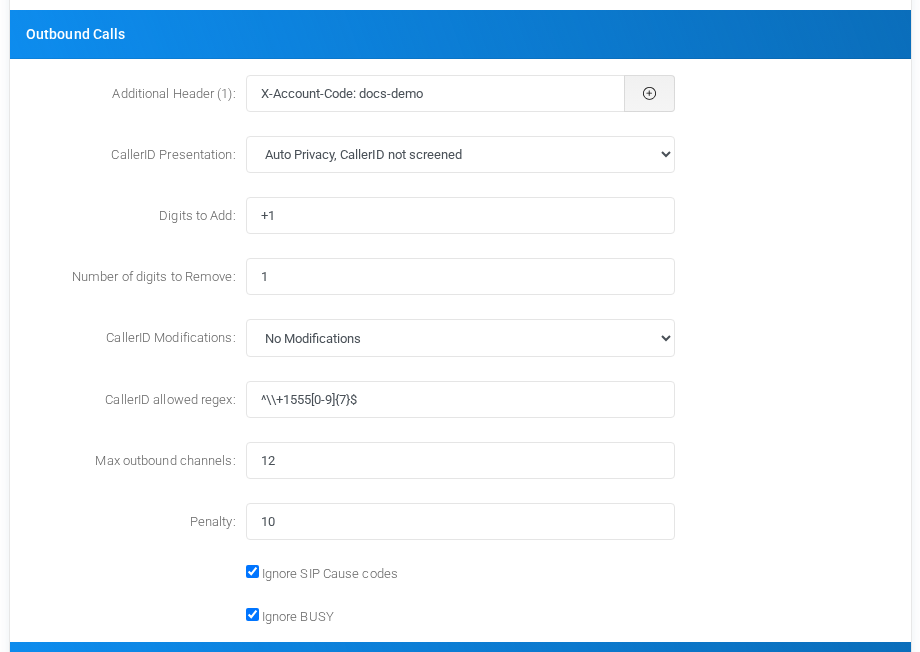Outbound Calls block with fictional caller ID and routing controls.**CallerID** and **CallerID Name** force the caller identity for every call using the provider. Leave them blank when the caller ID should come from the extension and normal caller ID rules.
**Max outbound channels** limits concurrent outbound calls through the provider. **Penalty** is used by routing decisions and round-robin selection. The ignore options let routing continue to another provider when the current provider returns SIP cause codes or a BUSY status that should not stop the route search.
## Inbound Calls
Inbound options normalize numbers before DID matching. Use these fields only when the carrier sends the destination number in a format that does not match the DIDs configured in the tenants.
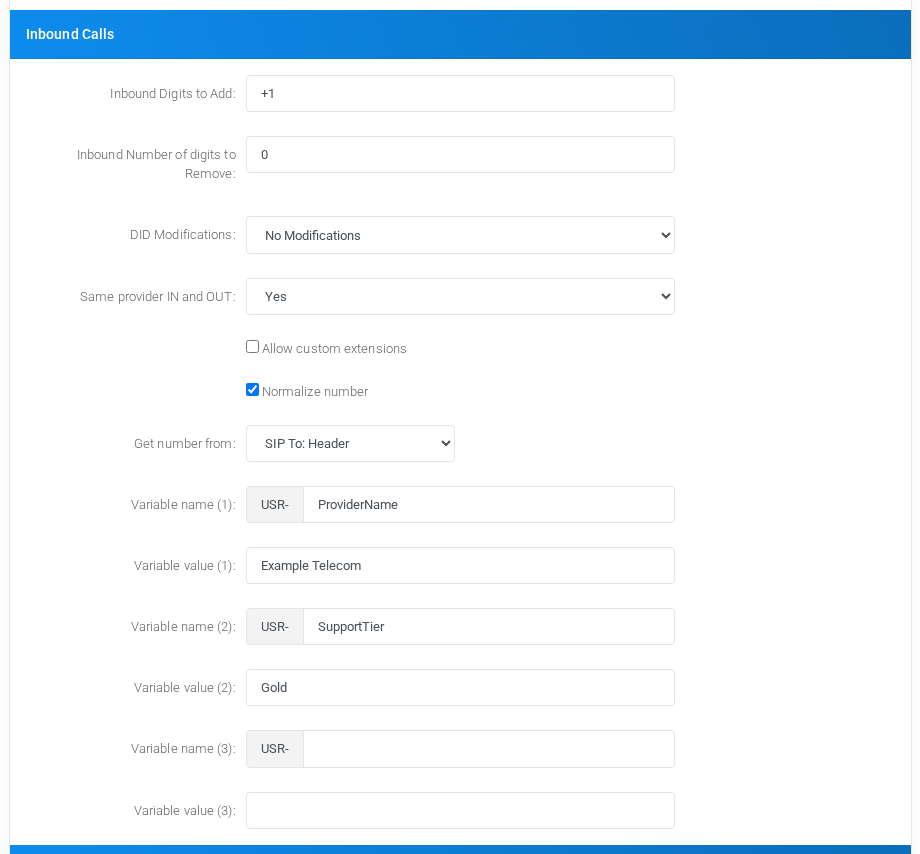Inbound Calls block with fictional DID normalization and user variables.**DID Modifications** can rewrite inbound numbers before matching. **Same provider IN and OUT** controls whether a call that arrived from this provider may also leave through the same provider. The variable fields create user variables prefixed with `USR-`, which can later be used by routing logic and dialplan actions.
## Realtime Account
For SIP, PJSIP, and IAX2 providers, enable **Use Realtime Account** when the provider should be represented by realtime Asterisk configuration. The fictional example below uses documentation IP and domain values.
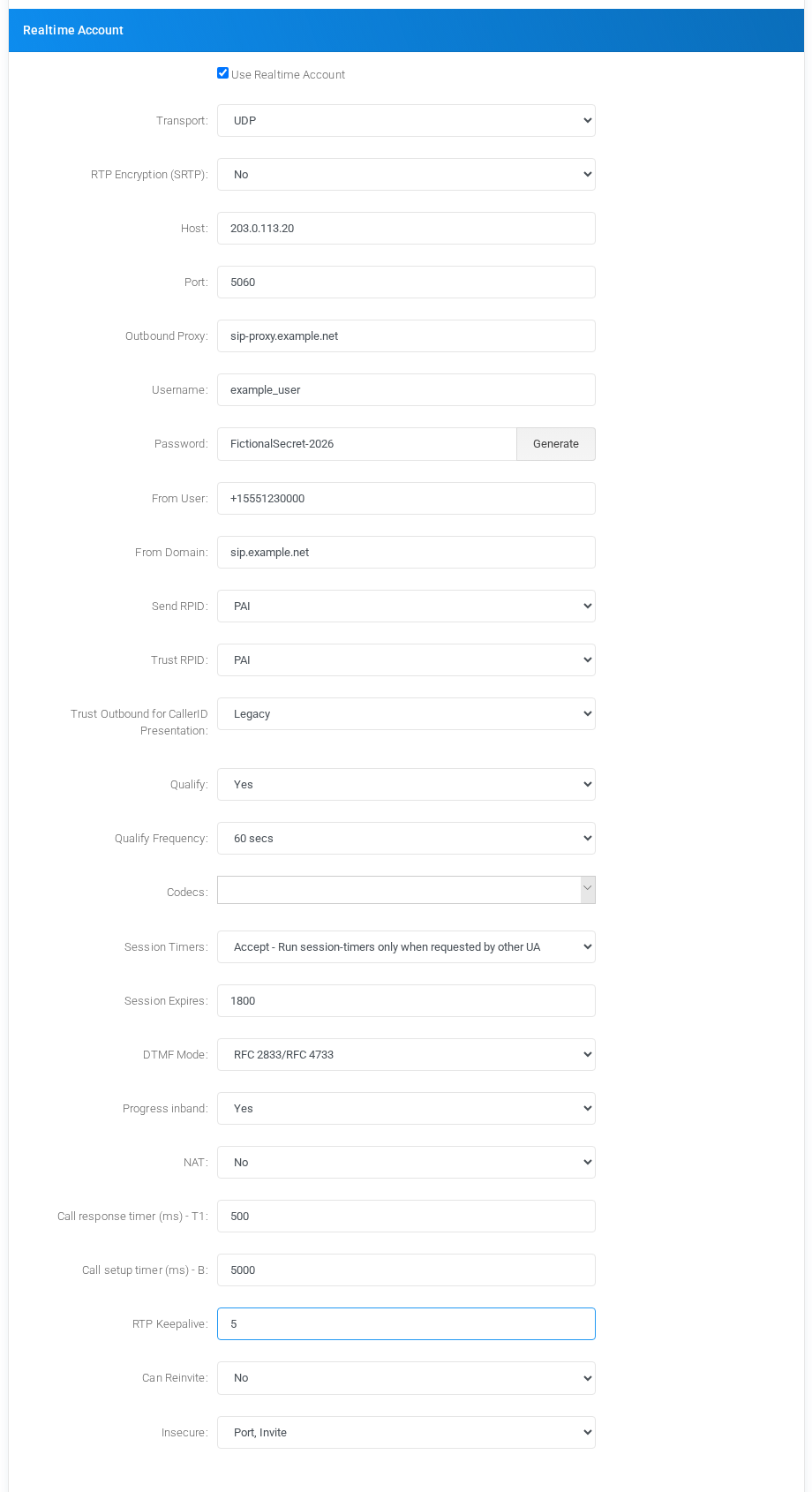Realtime Account block with fictional SIP registration and media settings.Use **Host** and **Port** for the provider address. For inbound calls, an IP address is preferred because Asterisk realtime matching cannot always rely on a hostname. Username, password, From User, From Domain, RPID/PAI handling, qualify settings, codecs, DTMF mode, NAT, timers, and RTP keepalive should match the carrier interconnection requirements.
## SMS Provider Options
When the technology is **SMS**, the outbound section changes to SMS delivery settings. Choose the SMS protocol and complete the fields required by the provider. The JSON Web URL example shows a fictional REST endpoint and a JSON body built from MiRTA PBX SMS variables.
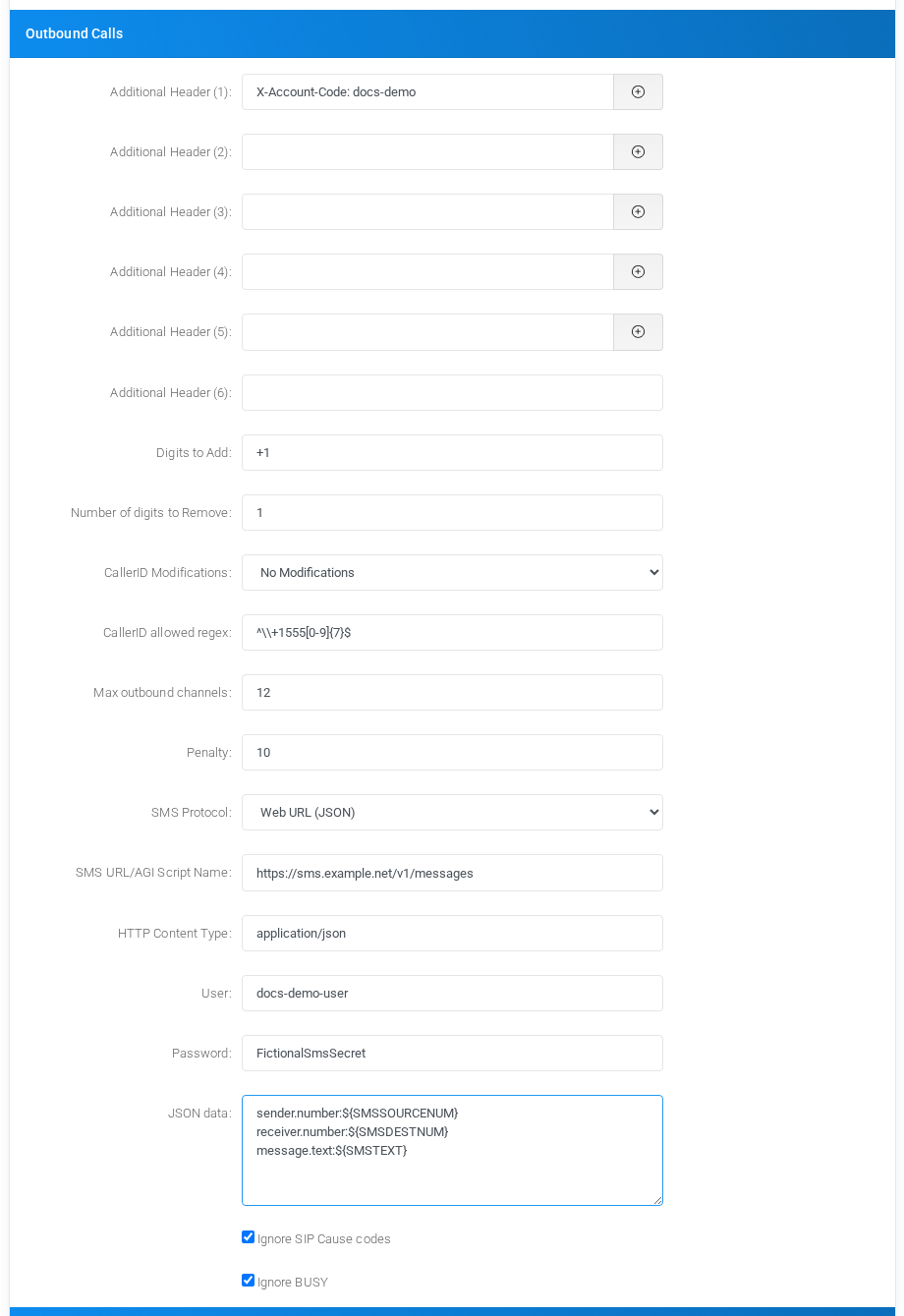SMS provider options shown with fictional JSON Web URL values.Common SMS variables include `${SMSTEXT}`, `${SMSDESTNUM}`, `${SMSSOURCENUM}`, and `${SMSNAME}`. For JSON payloads, dot notation in the field name creates nested JSON objects.
## Save and Test
1. Save the provider only after replacing the fictional values with production values from the carrier.
2. Confirm the provider appears in the provider list.
3. Create or update a routing profile so outbound calls can select the provider.
4. Use provider status, channel counters, and call history to validate registration, dialing, inbound DID matching, and caller ID presentation.
# Configure a Routing Profile
A routing profile groups routing rules. Tenants, extensions, campaigns, fax features, and SMS features can use routing profiles to decide which provider or route should be used for an outbound destination.
## Create the Routing Profile
1. Open **Admin > Routing Profiles**.
2. Select the add action.
3. Enter a name, such as **Docs Demo Voice Routing**.
4. Enter a short description explaining when this profile should be used.
5. Select the type: Voice, SMS, or FAX.
6. Save the profile.
## Add Routes
After the profile exists, add routing rules for the destinations that should use it. A typical voice profile starts with emergency, national, mobile, international, and fallback rules. Each rule should point to one or more providers and should be specific enough to avoid accidental matches.
## Routing Profile Types
Type
Use
Voice
Outbound voice calls and normal extension dialing.
SMS
Outbound SMS routing through SMS-capable providers.
FAX
Outbound fax routing where fax provider handling must be separated from voice routing.
## Test Routing
Use a limited test pattern and a known test number before assigning the profile to production tenants. Confirm which provider is selected, whether digit manipulation is correct, and whether caller ID rules match carrier requirements.
# Complete the Tenant configuration
After the tenant exists and the routing profile has been created, complete the tenant configuration so the tenant can place billable outbound calls using the intended profile.
## Assign the Routing Profile
1. Open **Admin > Tenants**.
2. Edit the tenant.
3. In the tenant information area, select the default routing profile for voice calls.
4. If needed, select a separate call-campaign routing profile, fax routing profile, and SMS routing profile.
5. Review the tenant limits before saving, especially channels, extensions, DIDs, media files, queues, and campaigns.
6. Save the tenant.
## Move the Tenant to Post Paid
1. In the tenant billing section, find the payment type field.
2. Change the payment type from **Prepaid** to **Post Paid**.
3. Confirm the tenant has the expected call rate, billing code, and cost-limit settings.
4. Save the tenant and reopen it to verify the new value.
Post Paid tenants are not stopped by prepaid balance exhaustion in the same way as prepaid tenants. Use cost warnings, cost limits, route cost limits, and call limits when the tenant still requires spending protection.
## Final Check
- The tenant is enabled.
- The default routing profile is assigned.
- The tenant is set to Post Paid.
- The billing code and call rate are correct.
- Outbound and emergency caller ID policies have been reviewed.
- The tenant channel limits are appropriate for production traffic.