# Use multiselect
MiRTA PBX uses multiselect fields when a form can hold more than one related object. Common examples include destination lists, extension lists, media files, queues, allowed providers, and report fields.
The example below uses a **Destination** field. The same control behavior applies to other multiselect fields, although the available object types depend on the field you are editing.
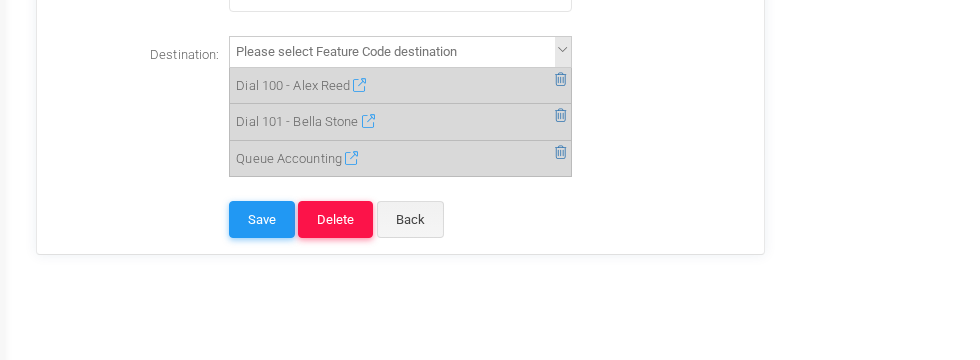Destination multiselect field with two extensions and the Accounting queue selected.## Select Items
Select the field, or the arrow at the right side of the field, to open the list of available values. Values are grouped by object type, such as Extensions, Queues, Conditions, or IVRs.
Select an item from the list to add it to the chosen items under the input. In the example, the field contains two extension destinations and the Accounting queue. When an arrow icon is shown beside a selected item, select it to open the edit page for that referenced object.
## Search Items
Start typing in the multiselect input to filter the available values. The search is field-specific: a Destination field searches destination objects, while another multiselect field may search extensions, media files, providers, or another object type.
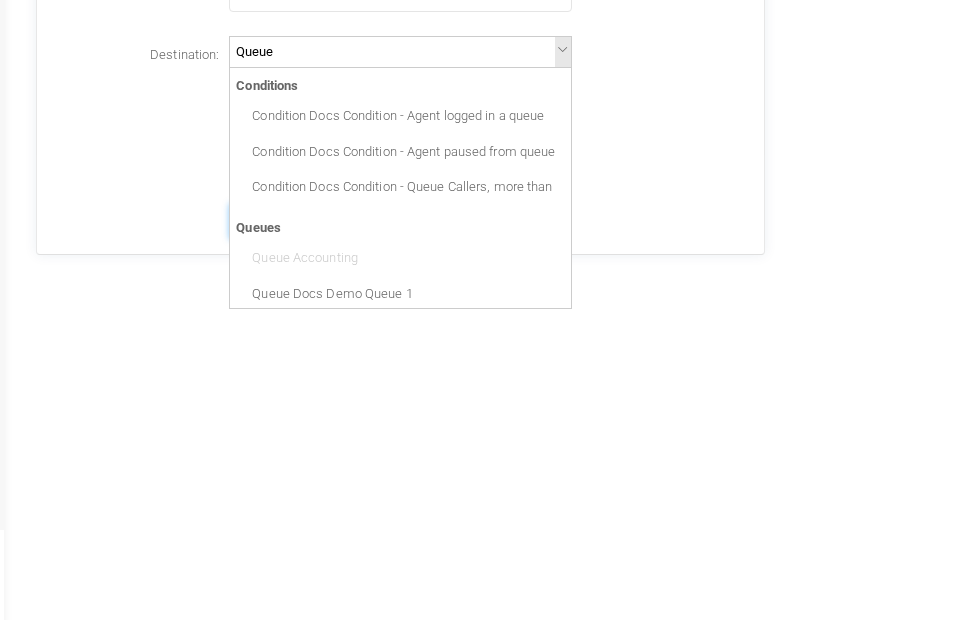Filtering the Destination field by typing Queue in the multiselect search input.The example searches for **Queue**. Matching results are grouped by type, so you can distinguish a queue from a condition, special action, or another object whose label also contains the search term.
If the expected item is not returned, verify that you are working in the correct tenant and that the object exists in a type accepted by the current field.
## Rearrange Items
Selected items can be reordered by dragging a chosen item up or down in the selected list. When the field represents an ordered sequence, MiRTA PBX saves the items in the displayed order.
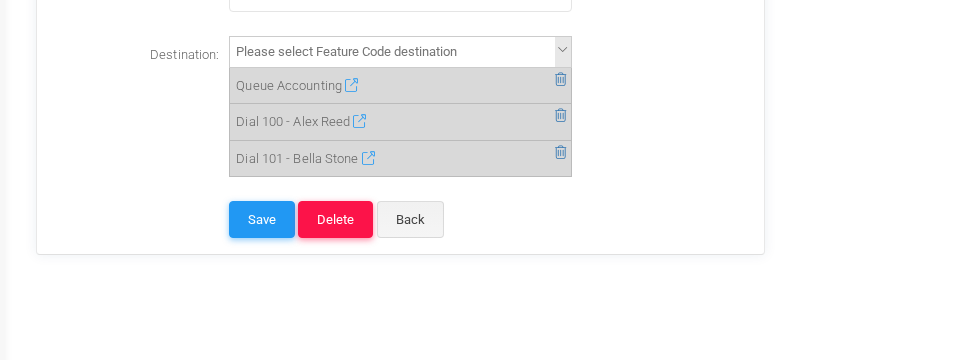Selected destinations reordered so the Accounting queue is first.In the example, **Queue Accounting** has been moved before the two extension destinations. Use this ordering for fallback paths, destination chains, ordered report columns, or any other multiselect field where the order changes the result.
## Remove Items
Select the trash icon at the right side of a chosen item to remove it from the field. This removes the relationship from the current form only; it does not delete the destination, extension, queue, media file, or other referenced object.
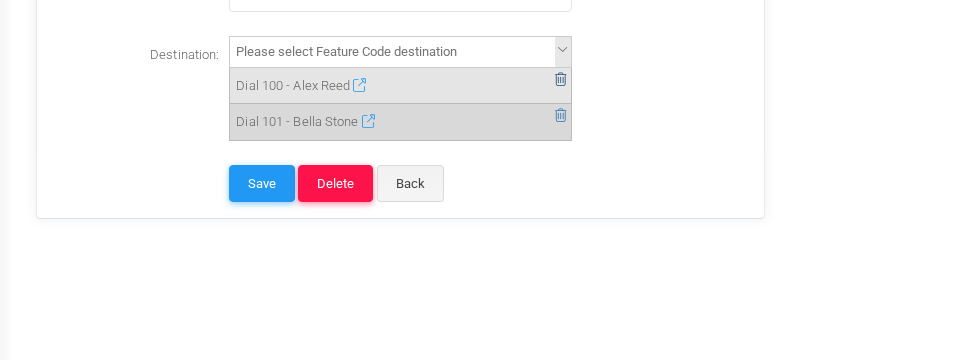The Accounting queue removed from the selected destinations.After selecting, rearranging, or removing values, save the form to apply the change. If you leave the page without saving, the multiselect changes are discarded like any other unsaved form edit.