
Create and Edit IVRs
Use this page when creating a new IVR or editing an existing IVR from Configuration > IVRs.
The form screenshots below are separated by block where the application exposes separate sections. Complete the required values, review routing or destination references, and save the record.
Add and edit form
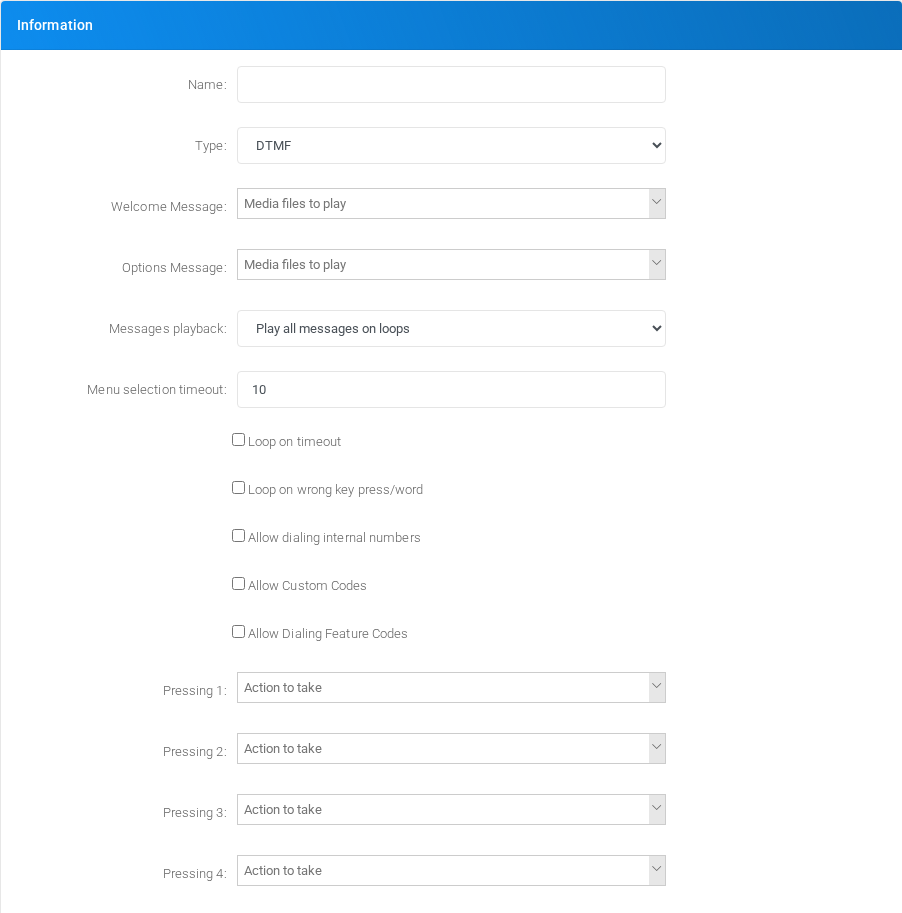
Main fields
| Field | Description |
|---|---|
| Name: | Display name used in lists and references. |
| Type: | Mode selector that changes the behavior of the object. |
| Speech to Text Language: | Language or voice selection used for prompts, transcription, or speech synthesis. |
| Min silence time (ms): | Object setting shown by the form. |
| Silence threshold: | Object setting shown by the form. |
| Messages playback: | Object setting shown by the form. |
| Menu selection timeout: | Timing value used by the service. |
| Digit timeout: | Timing value used by the service. |
| Max loop counts: | Object setting shown by the form. |
| Loop on timeout | Timing value used by the service. |
| Loop on wrong key press/word | Object setting shown by the form. |
| Allow dialing internal numbers | Dialed value, identifier, or matching value used by the PBX. |
| Allowed numbers: | Dialed value, identifier, or matching value used by the PBX. |
| Allow Custom Codes | Dialed value, identifier, or matching value used by the PBX. |
| Allow Dialing Feature Codes | Dialed value, identifier, or matching value used by the PBX. |
Voice IVR fields
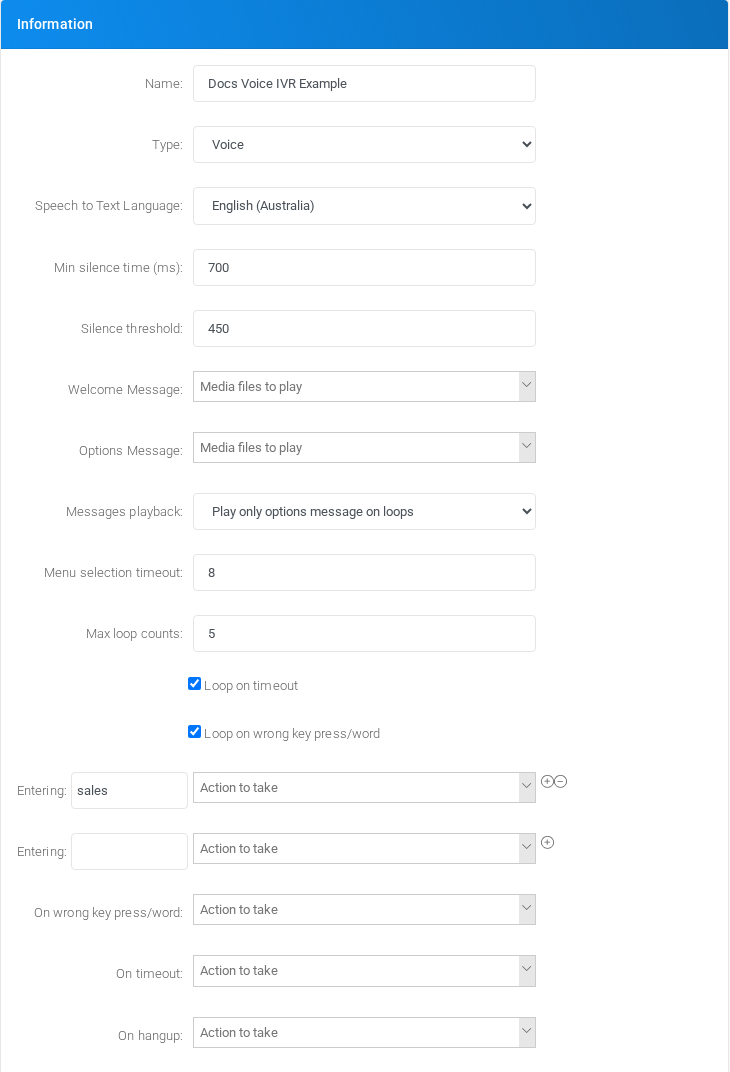
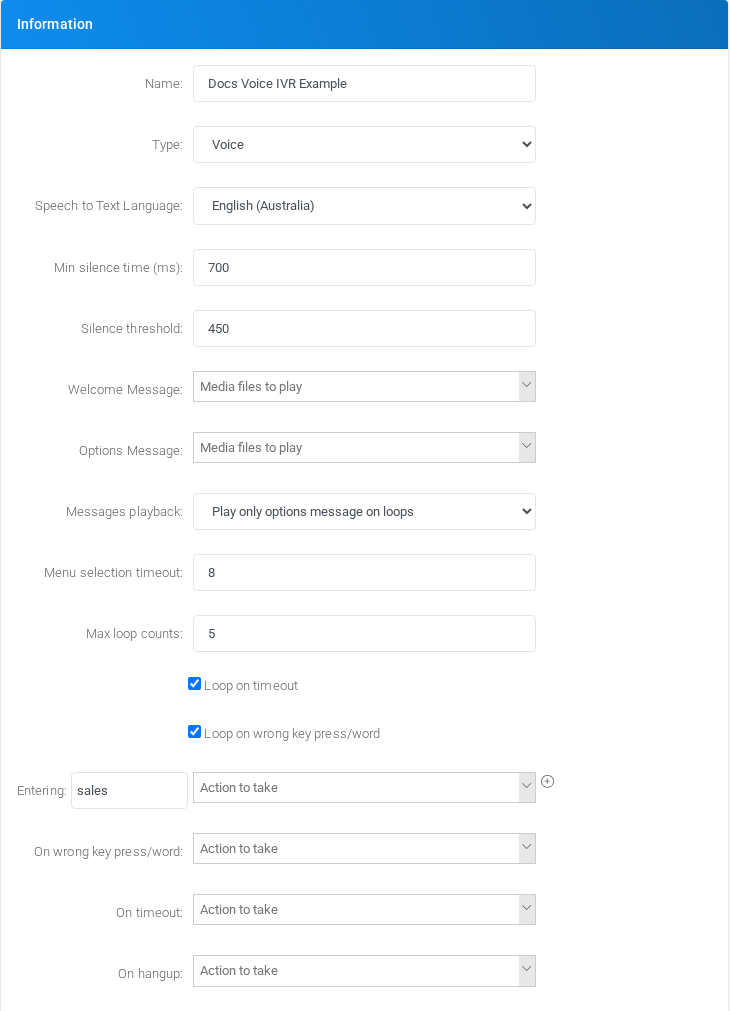
Set Type to Voice when callers should speak a word or short phrase instead of pressing DTMF digits. MiRTA PBX sends the captured audio to the configured Speech to Text service, compares the recognized text with the entries defined in the IVR, and then routes the call to the matching destination.
| Field | Description |
|---|---|
| Type | Select Voice to hide the fixed DTMF key mappings and use spoken words or phrases as menu choices. |
| Speech to Text Language | Selects the speech-recognition language used to transcribe the caller audio before matching it against the IVR entries. |
| Min silence time (ms) | Amount of silence, in milliseconds, that MiRTA PBX waits before sending the captured speech to the Speech to Text engine. A higher value allows longer pauses inside a phrase; a lower value submits the audio sooner. |
| Silence threshold | Audio level below which the input is considered silence. Increase it in noisy environments; decrease it when quiet speech is being cut too early. |
| Welcome Message | Media played at the beginning of the IVR, normally only on the first pass through the menu. |
| Options Message | Media that explains the available spoken choices to the caller. |
| Messages playback | Controls whether welcome and options media are replayed during loops, only the options media is replayed, or no media is replayed. |
| Menu selection timeout | How long the IVR waits for speech before using the timeout behavior. |
| Loop on timeout | When enabled, the IVR repeats after a timeout instead of immediately following the timeout destination. Max loop counts limits how many retries are allowed. |
| Loop on wrong key press/word | When enabled, the IVR repeats after speech is recognized but does not match any configured word or phrase. |
| Entering | The word or short phrase to match after transcription, such as sales, support, billing, or operator. |
| Action to take | The destination used when the recognized word or phrase matches the Entering value. |
| On wrong key press/word | Fallback destination when the spoken input does not match any configured entry and looping is not used or has reached the maximum loop count. |
| On timeout | Fallback destination when no speech is detected before the menu selection timeout. |
| On hangup | Optional destination or action to run when the caller hangs up while inside the IVR. |
Use short, distinct words for Voice IVR entries. Words that sound similar can be transcribed the same way, especially with background noise or low-quality audio.
Saving and deleting
| Task | How to do it |
|---|---|
| Create | Select the new action from the IVRs list, fill the required fields, and select Save. |
| Edit | Open the existing IVR, update the needed fields, and select Save. |
| Delete | Before deleting a IVR, check call-flow, destination, schedule, report, provisioning, or integration references. Use the row delete action or the form delete action when available, then confirm. |