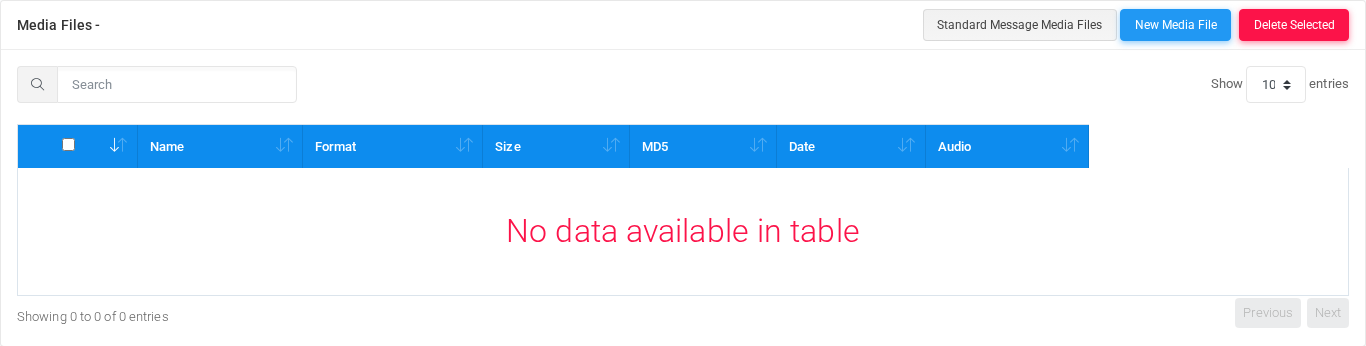
The Media Files page stores prompts and audio files used by IVRs, queues, DISAs, announcements, music-on-hold lists, and other call flows. Open it from Configuration > Media Files.
The page works against the tenant currently selected in the top bar. The screenshots and demo rows were captured in the Canistracci OIL tenant.
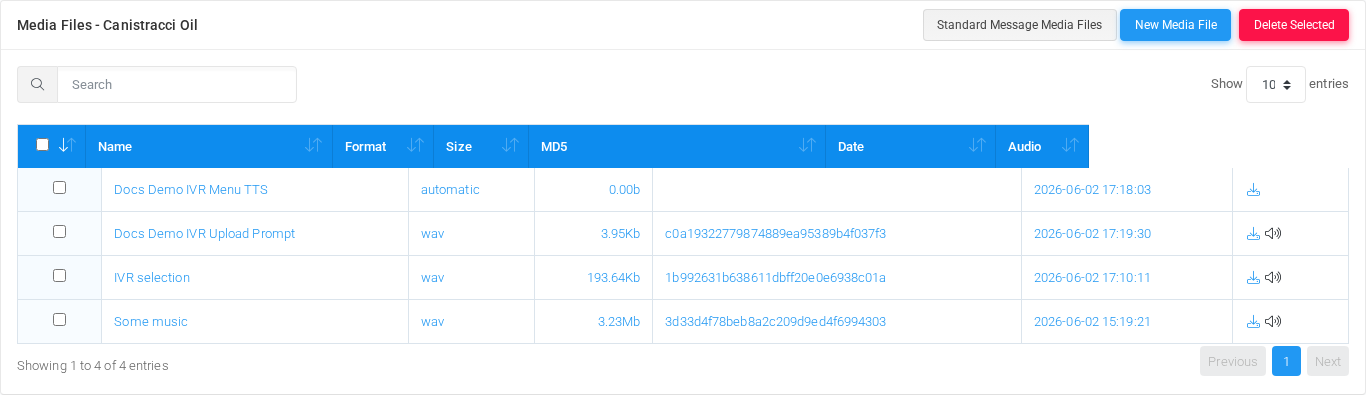
Media Files list page in the Canistracci OIL tenant.
Working with objects
TaskHow to do itAddSelect the New media file action, complete the form, and select Save.EditOpen the media file from the list by selecting its name, number, or row action. Change the form and select Save.DeleteSelect the row checkbox and use Delete Selected, or open the media file and select Delete, then confirm.
Page functions
Action
Description
Download
Downloads or exports the currently available data.
Standard Message Media FilesRunsOpens the Standardstandard Messageprompt Mediaassignment Filespage, action.where predefined system prompts can be associated with existing media files.
New Media FileOpens the creation form for a new media file. From that form you can upload an audio file, create a text-to-speech prompt, or record by dialing an extension or external number.
Delete SelectedDeletes the selected rowsmedia files after confirmation. Check IVRs, queues, DISAs, music-on-hold lists, and other call flows before deleting a prompt that may be in use.
SearchFilters the visible rows by name, format, size, checksum, date, or other displayed text.
SortSorts the table by the selected column.
Page sizeChanges how many media files are shown per page.
Audio downloadDownloads the stored media file from the row's Audio column.
Audio playbackOpens the in-page media player when the stored format can be played directly by the browser.
List columns
Column
Description
Select
Selects one or more rows for bulk deletion.
NameDisplay name used when selecting the prompt in listsIVRs, queues, destinations, and references.other configuration pages.
FormatObjectStored settingaudio shownformat, byor the form.configured text-to-speech creation mode when no stored audio file exists yet.
SizeObjectStored settingmedia shownsize. byDynamic text-to-speech prompts can show zero bytes because audio is generated during the form.call.
MD5ObjectChecksum setting shown byof the form.stored audio file. This is blank when the media file has no stored audio body.
DateObjectLast settingmedia-file showncreation byor theupdate form.timestamp.
AudioObjectDownload settingand shownplayback byactions for the form.media file.
FormCommon sectionsworkflows
SectionWorkflow
DescriptionUse it when
InformationUpload a Media File
CoreYou identityalready andhave routinga fieldsWAV, forMP3, M4A, or WMA file to use as a prompt.
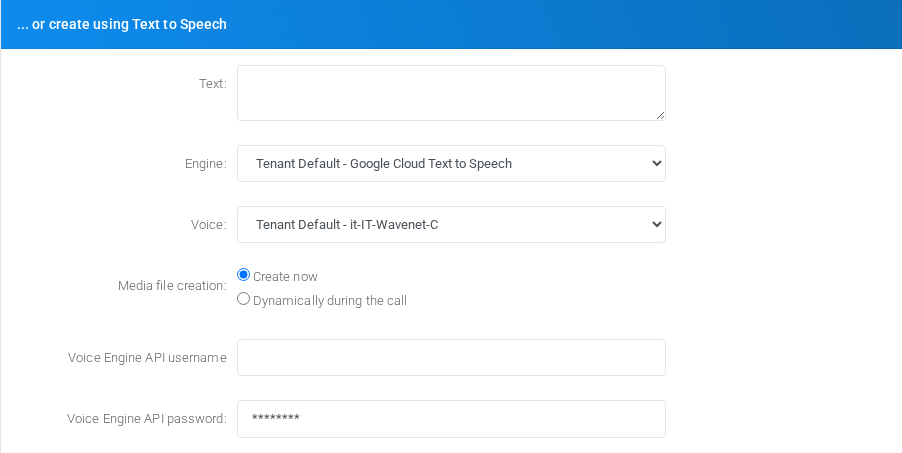
Create a Media File with Text to SpeechYou want MiRTA PBX to synthesize the object.prompt from text, either immediately or dynamically during the call.
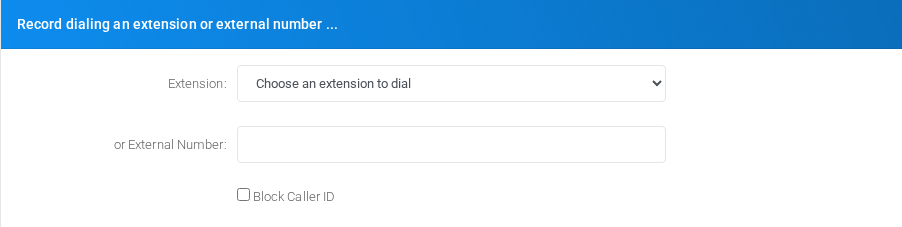
Record by dialing outYou want MiRTA PBX to call an extension or external number ...Settingsand shown inrecord the Recordspoken dialingaudio anfrom extensionthat or external number ... block.call.
...Edit an existing media fileOpen the row by selecting its name, format, size, checksum, or createdate, usingthen Text to SpeechSettings shown inupdate the ...relevant orform create using Text to Speech block.... or upload recordingRecording storageblocks and recording-related options.Upload/create transformationsSettings shown in the Upload/create transformations block.
Information
Information section on the edit form.
Core identity and routing fields for the object.
Record dialing an extension or external number ...
Record dialing an extension or external number ... section on the edit form.
Settings shown in the Record dialing an extension or external number ... block.
... or create using Text to Speech
... or create using Text to Speech section on the edit form.
Settings shown in the ... or create using Text to Speech block.
... or upload recording
... or upload recording section on the edit form.
Recording storage and recording-related options.
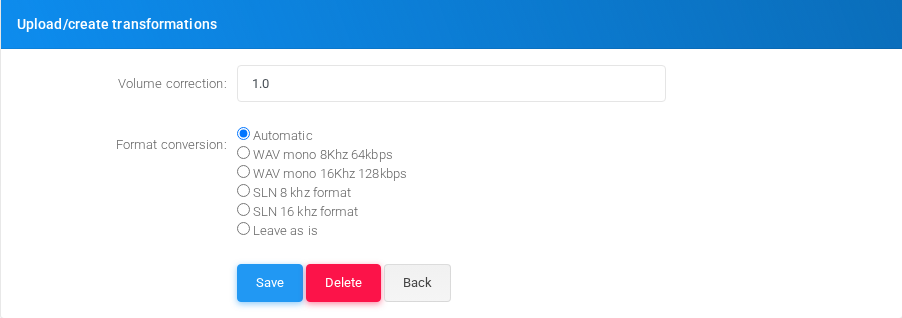
Upload/create transformations
Upload/create transformations section on the edit form.
Settings shown in the Upload/create transformations block.
Main fields
FieldDescriptionName:Display name used in lists and references.Description:Administrative note shown in lists and reports.Extension:Target or routing selection used when the object sends a call or message onward.or External Number:Dialed value, identifier, or matching value used by the PBX.Block Caller IDCaller ID or caller matching value.Text:Object setting shown by the form.Engine:Mode selector that changes the behavior of the object.Voice:Language or voice selection used for prompts, transcription, or speech synthesis.Media file creation:File upload or file name used by the object.Region:Object setting shown by the form.Voice Engine API usernameDisplay name used in lists and references.Voice Engine API password:Credential or PIN value. Treat it as sensitive.File:File upload or file name used by the object.Volume correction:Object setting shown by the form.Format conversion:Object setting shown by the form.save.
Demo records
The Canistracci OIL tenant contains 1these documentation demoexamples: record for this page: Docs Demo MediaIVR 1.Upload Prompt, Docs Demo IVR Menu TTS, IVR selection, and Some music.
Deleting records
Before deleting a media file, check references fromevery call flows,flow that can reference prompts: IVRs, queues, DISAs, hunt lists, custom destinations, schedules,music-on-hold reports,lists, orand provisioningstandard objects.messages. MiRTA PBX asks for confirmation before the delete is submitted.