
Configuring Recording Storage using Google (Cloud Storage with a Service Account or Google Drive with a Personal Account)
Storing files in Google Drive can be done in two ways: using a Service Account (when you have Google Workspace) or using a Personal Account (when you have the normal @gmail.com email)
Cloud Storage using a Service Account
From within your Gmail workspace admin account, access the http://console.cloud.google.com/
Choose your project and enable the Cloud Storage API
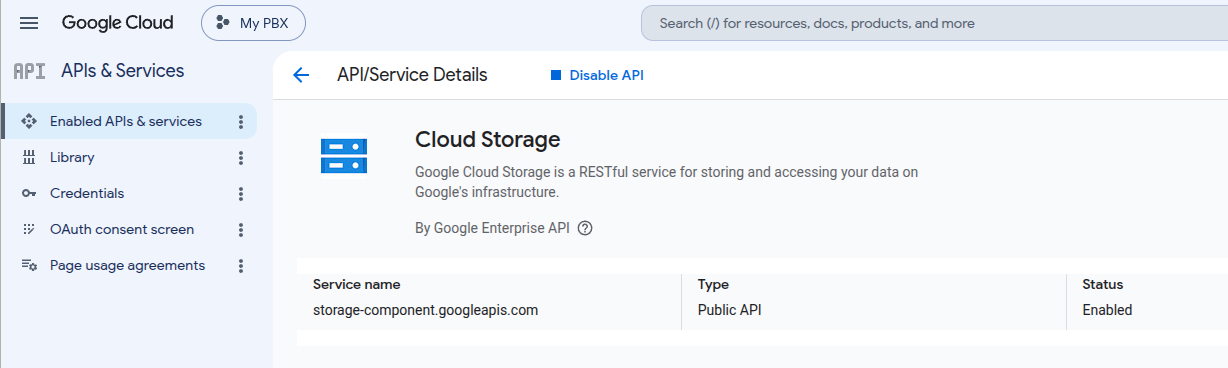
In the credentials page, create a service account and store the json file in your configuration.
The service account has an email associated, like recording@my-pbx-499816.iam.gserviceaccount.com
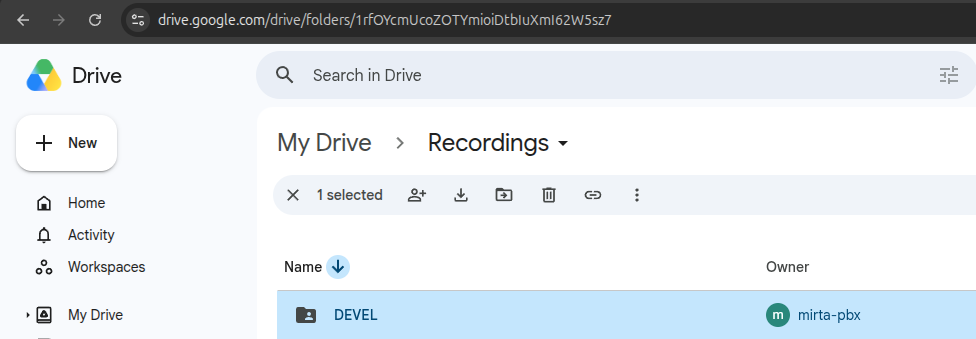
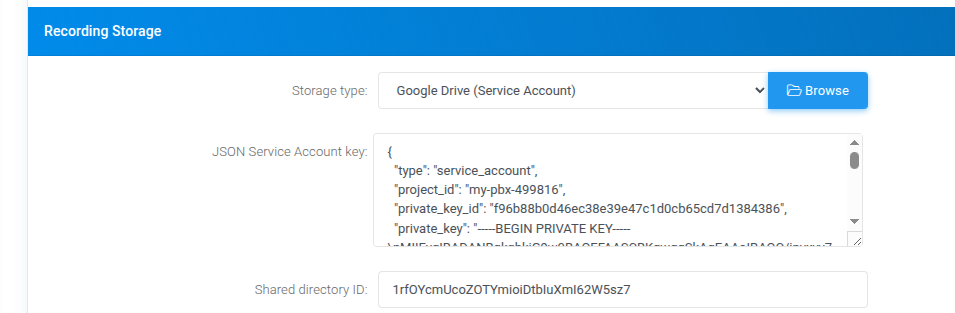
Use you Google Drive to share the directory you identify for storing your recording with this email. Take note of the directory ID from the URL and configure it
Google Drive using a Personal Account
From within your Gmail account, access the http://console.cloud.google.com/
Choose your project and enable the Google Drive API
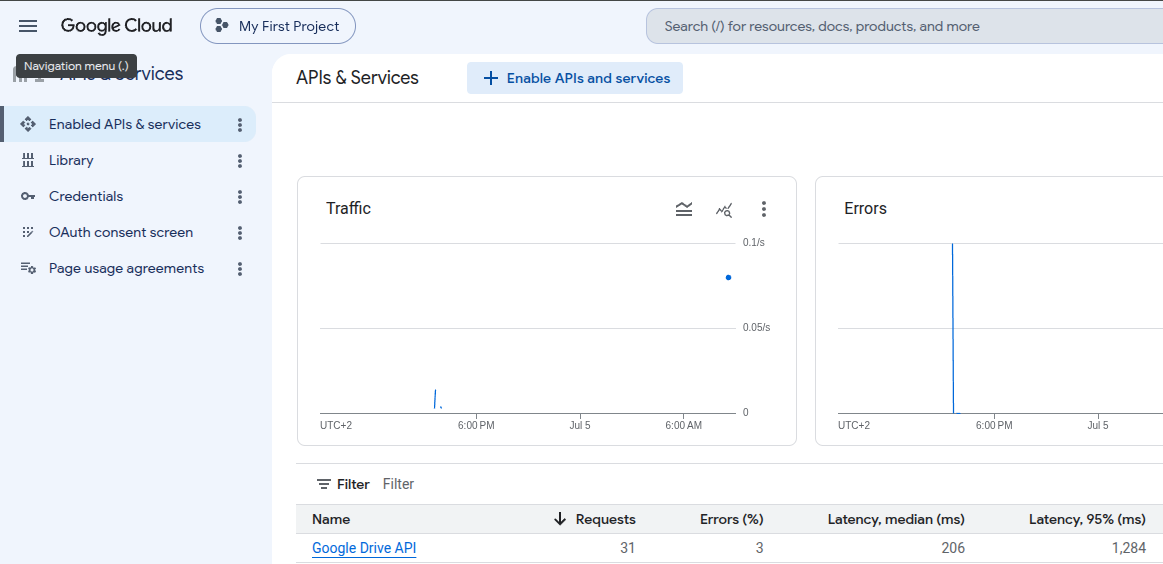
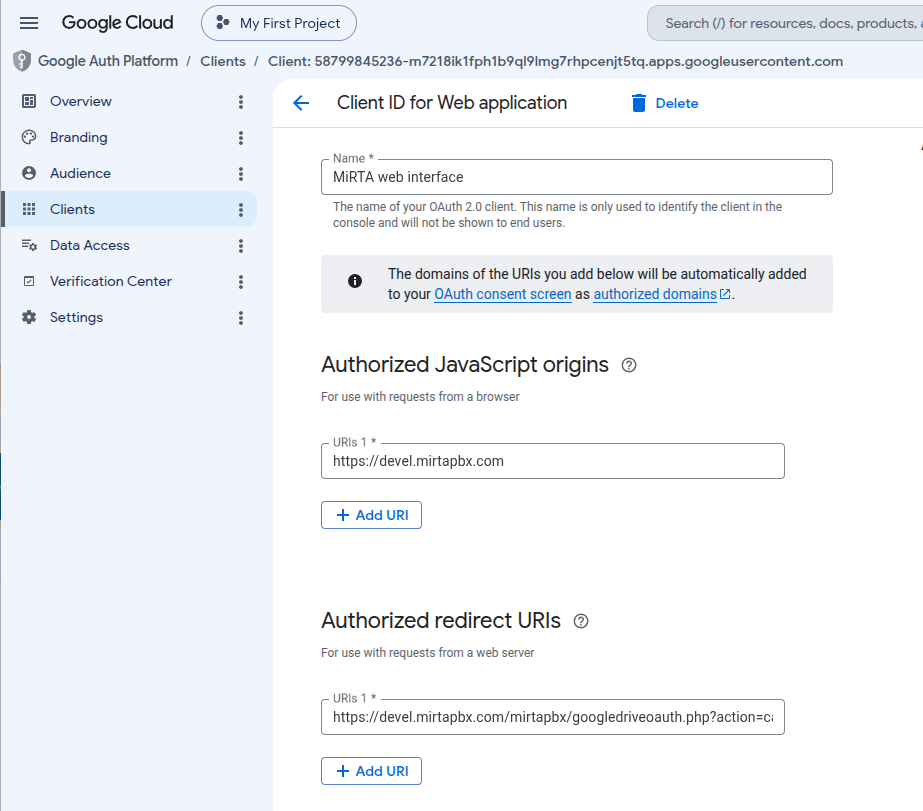
Move to the Credentials page and create a OAuth 2.0 Client IDs
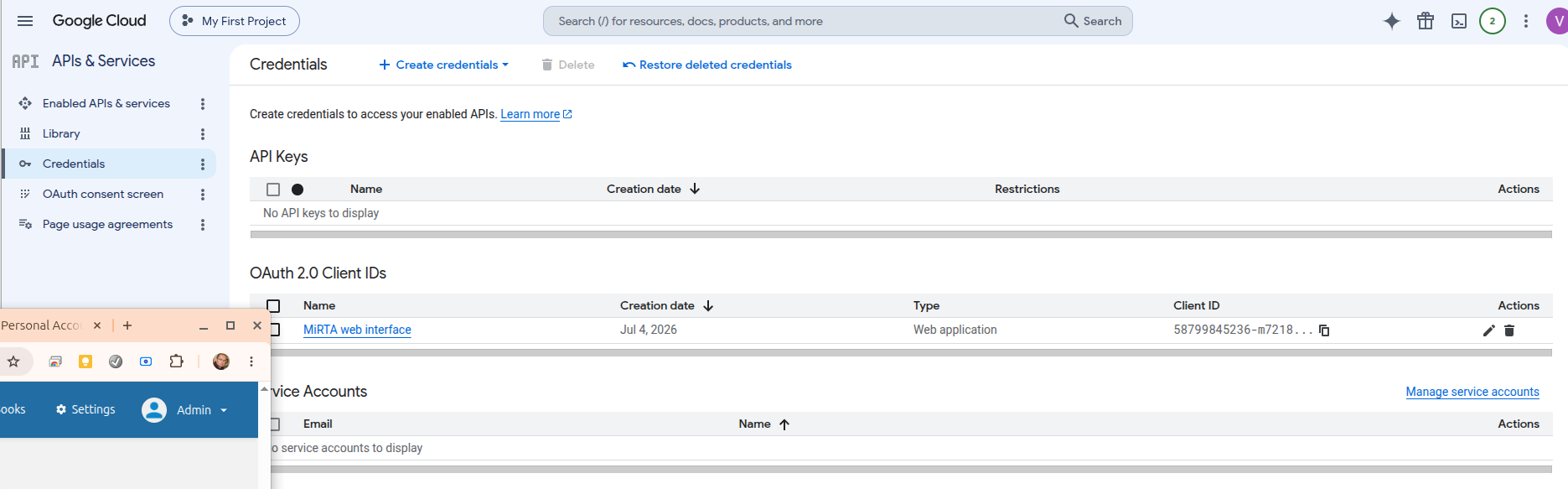
When you create the secret, you can download the json file only once. That will be used inside the Settings page:
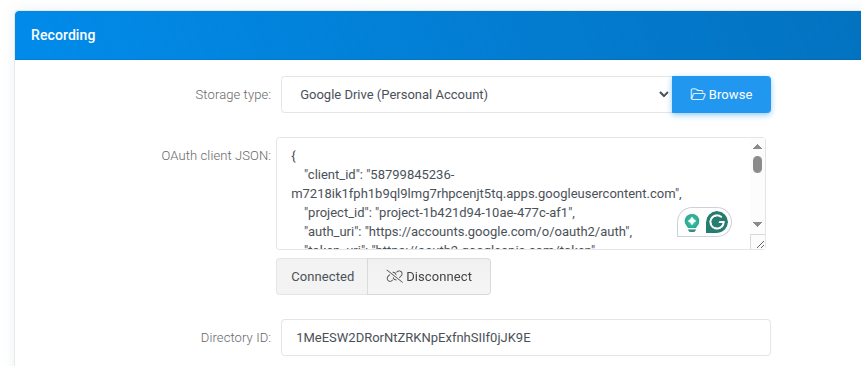
From the Google Drive create a directory and enter it to get the Recording ID in the address bar
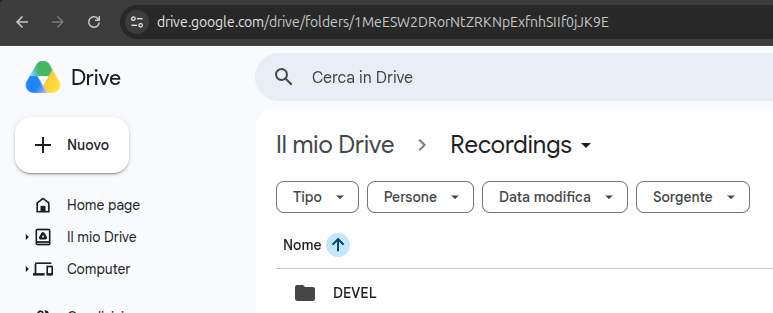
That will be used in the Settings page as above
Connect with the OAuth process. Currently the credentials needs to be used once every 6 months or will be disabled
No comments to display
No comments to display