
Overview
Use Admin > Settings to manage global MiRTA PBX behavior. These settings are system-wide, so changes can affect multiple tenants, integrations, storage backends, and background jobs.
Working with Admin Settings
| Action | Description |
|---|---|
| Open | Open Admin > Settings from the Global Administration menu. |
| Review | Work section by section. Global changes should be checked against tenants, nodes, storage services, and integrations that depend on them. |
| Save | Use Save at the bottom of the form to apply changes. Some changes, such as upgrade, housekeeping, media-file, or test actions, run their own action from the relevant section. |
| Custom extension usernames | Enable Allow extensions with custom usernames in the Security section when SIP extensions must use usernames that do not follow the generated tenant-code format. |
Version
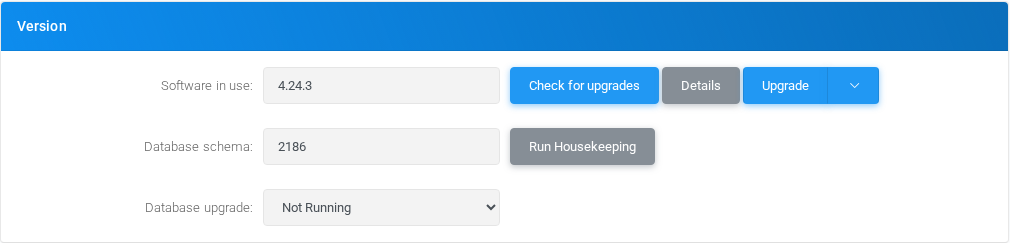
Use this section to check the installed software version, database schema status, available upgrades, and maintenance actions.
| Field or option | Purpose |
|---|---|
| Software in use | Sets the Software in use value for Version. |
| Database schema | Sets the Database schema value for Version. |
| Database upgrade (Select) | Selects the Database upgrade behavior for Version. |
Internationalization

Use this section for global locale defaults such as the system currency.
| Field or option | Purpose |
|---|---|
| Currency | Sets the Currency value for Internationalization. |
Dialing
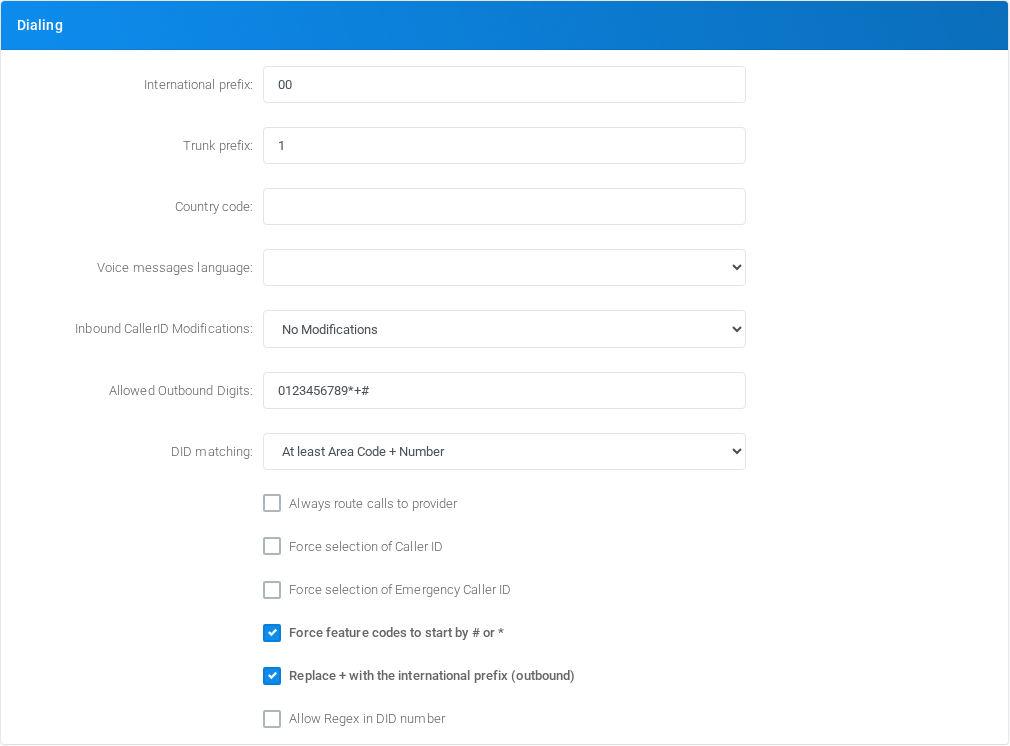
Use this section for global dialing defaults, caller ID handling, DID matching, and feature-code restrictions.
| Field or option | Purpose |
|---|---|
| International prefix | Sets the International prefix value for Dialing. |
| Trunk prefix | Sets the Trunk prefix value for Dialing. |
| Country code | Country Code: You can specify the country code, like 39, so any call using the international prefix, but the country code, will not be treated as international |
| Voice messages language (Select) | Language: This option controls the selection of the language in Asterisk embedded message playback |
| Inbound CallerID Modifications (Select) | Selects the Inbound CallerID Modifications behavior for Dialing. |
| Allowed Outbound Digits | Sets the Allowed Outbound Digits value for Dialing. |
| DID matching (Select) | Allow DID matching for number only: When a DID is searched in the system, at least a match for areacode + number is required, when a provider sends only the number part. |
| Always route calls to provider (Checkbox) | Always route calls to provider: Even if the number dialed is defined on the PBX, route it to the provider. |
| Force selection of Caller ID (Checkbox) | Force selection of Caller ID: Force selection of a numeric Caller ID number, hide selection of ANONYMOUS and WITHHELD from extensions Caller ID selection |
| Force selection of Emergency Caller ID (Checkbox) | Force selection of Emergency Caller ID: Force selection of an emergency Caller ID. You can set it at tenant or extension level |
| Force feature codes to start by # or * (Checkbox) | Force feature codes to start either by # or *: By enabling this, a feature code must start by * or # otherwise you can use anything as feature code |
| Replace + with the international prefix (outbound) (Checkbox) | Replace + with the international prefix (outbound): By enabling this, when dialing out, it replaces the + with the international prefix |
| Allow Regex in DID number (Checkbox) | Allow Regex in DID number: Allow to use a regex for the number in the DID page. Be warned, a wrong regex can stop all calls |
License
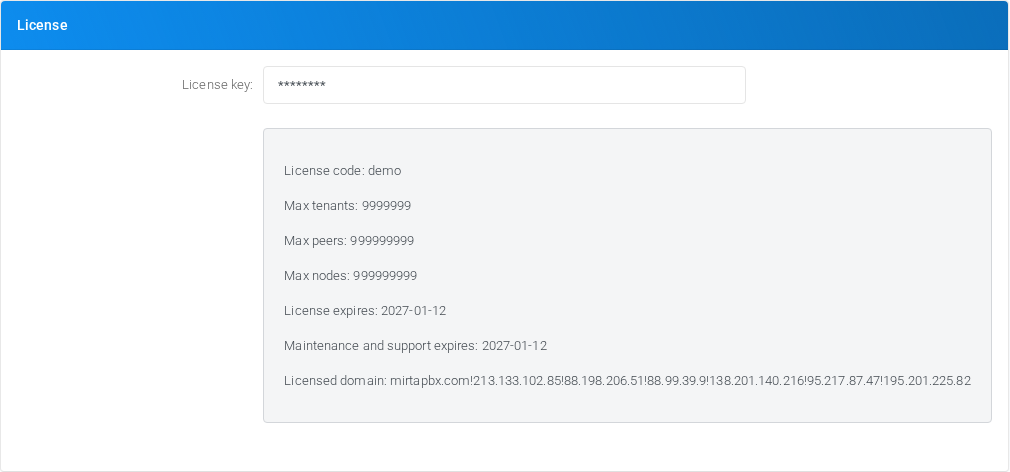
Use this section to store the system license key.
| Field or option | Purpose |
|---|---|
| License key | Sets the License key value for License. |
API Interface
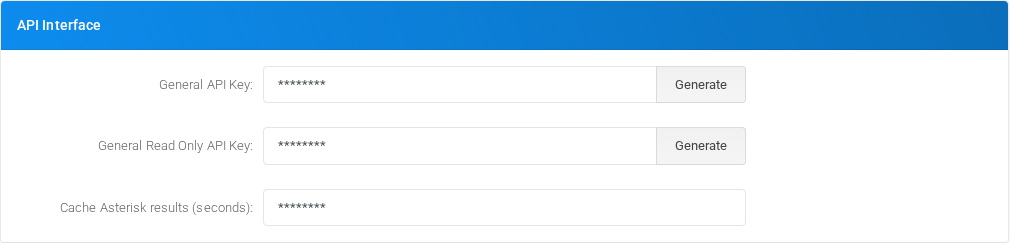
Use this section to manage global API credentials and API-side Asterisk result caching.
| Field or option | Purpose |
|---|---|
| General API Key | Sets the General API Key value for API Interface. |
| General Read Only API Key | Sets the General Read Only API Key value for API Interface. |
| Cache Asterisk results (seconds) | Cache Asterisk results (seconds): API calls can put heavy load on Asterisk, so you can specify a time in seconds to retain results and use as cache |
DB Data Retention
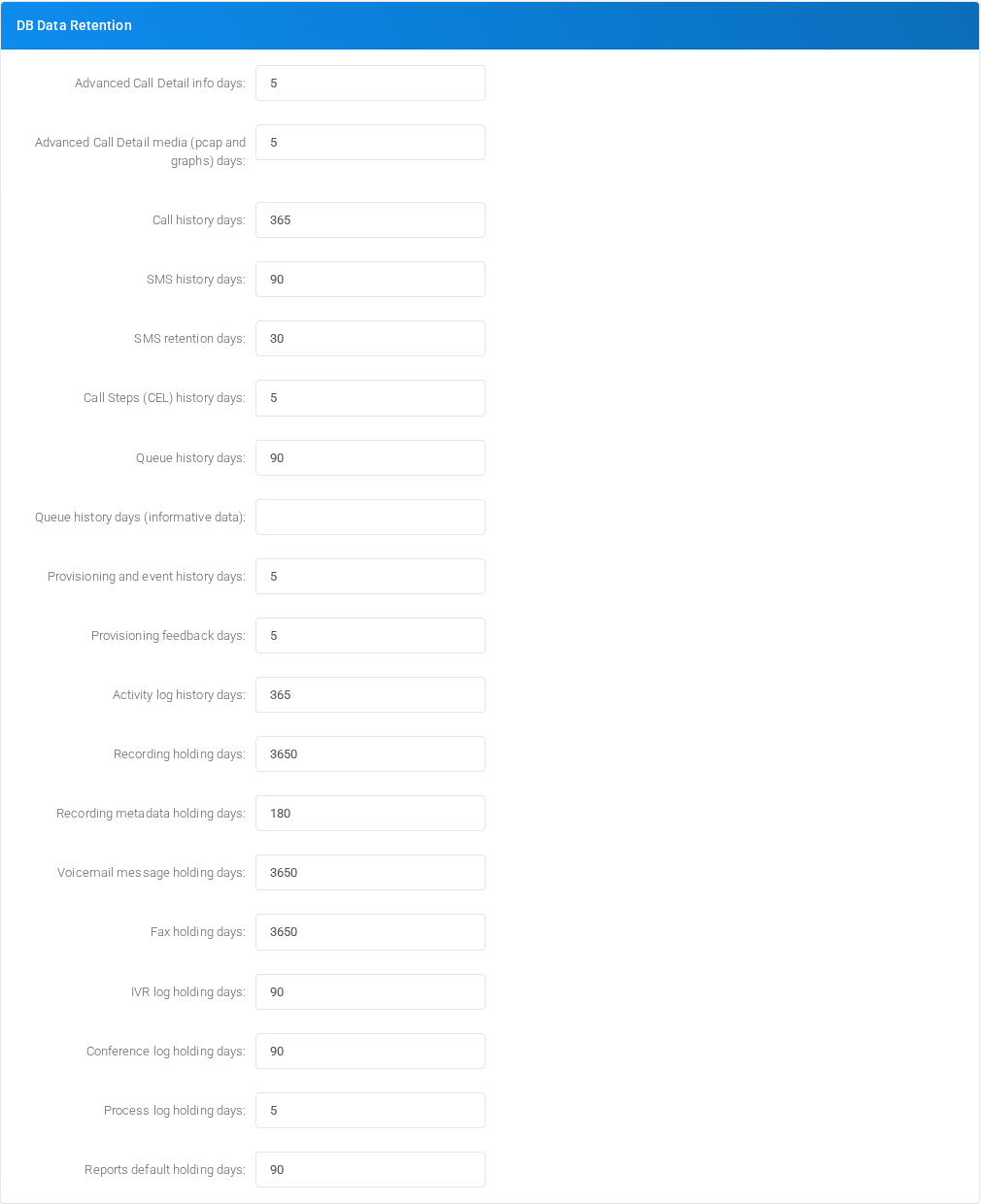
Use this section to define how long operational data remains in the database before cleanup. Recording metadata can have its own retention period, or it can follow the recording retention value when left empty.
| Field or option | Purpose |
|---|---|
| Advanced Call Detail info days | Advanced Call Detail info days: Sets the retention period for the Voipmonitor CDR data. You can access them from the call history, using the disposition link |
| Advanced Call Detail media (pcap and graphs) days | Advanced Call Detail media (pcap and graphs) days: Sets the retention period from the Voipmonitor pcap and graphs |
| Call history days | Call history days: Sets the retention days for call history, both Simple Call History and Complete Call History |
| SMS history days | SMS history days: Sets the retention days for SMS History |
| SMS retention days | SMS retention days: Sets the number of days to keep trying to send an SMS |
| Call Steps (CEL) history days | Call Steps (CEL) history days: Sets the retention days for the Call Steps data and CEL table |
| Queue history days | Queue history days: Sets the retention days for the queue history logs |
| Queue history days (informative data) | Queue history days (informative data): Sets the retention days for the informative events of the queue history, like NO FREE AGENTS and NOT THE RIGHT TIME |
| Provisioning and event history days | Sets the Provisioning and event history days value for DB Data Retention. |
| Provisioning feedback days | Sets the Provisioning feedback days value for DB Data Retention. |
| Activity log history days | Sets the Activity log history days value for DB Data Retention. |
| Recording holding days | Sets the Recording holding days value for DB Data Retention. |
| Recording metadata holding days | Sets how many days recording metadata such as transcripts, summaries, sentiment analysis, and AI analysis details remain in rm_recordingmetadatas. Leave empty to follow Recording holding days. |
| Voicemail message holding days | Sets the Voicemail message holding days value for DB Data Retention. |
| Fax holding days | Sets the Fax holding days value for DB Data Retention. |
| IVR log holding days | Sets the IVR log holding days value for DB Data Retention. |
| Conference log holding days | Sets the Conference log holding days value for DB Data Retention. |
| Process log holding days | Sets the Process log holding days value for DB Data Retention. |
| Reports default holding days | Sets the Reports default holding days value for DB Data Retention. |
Recording
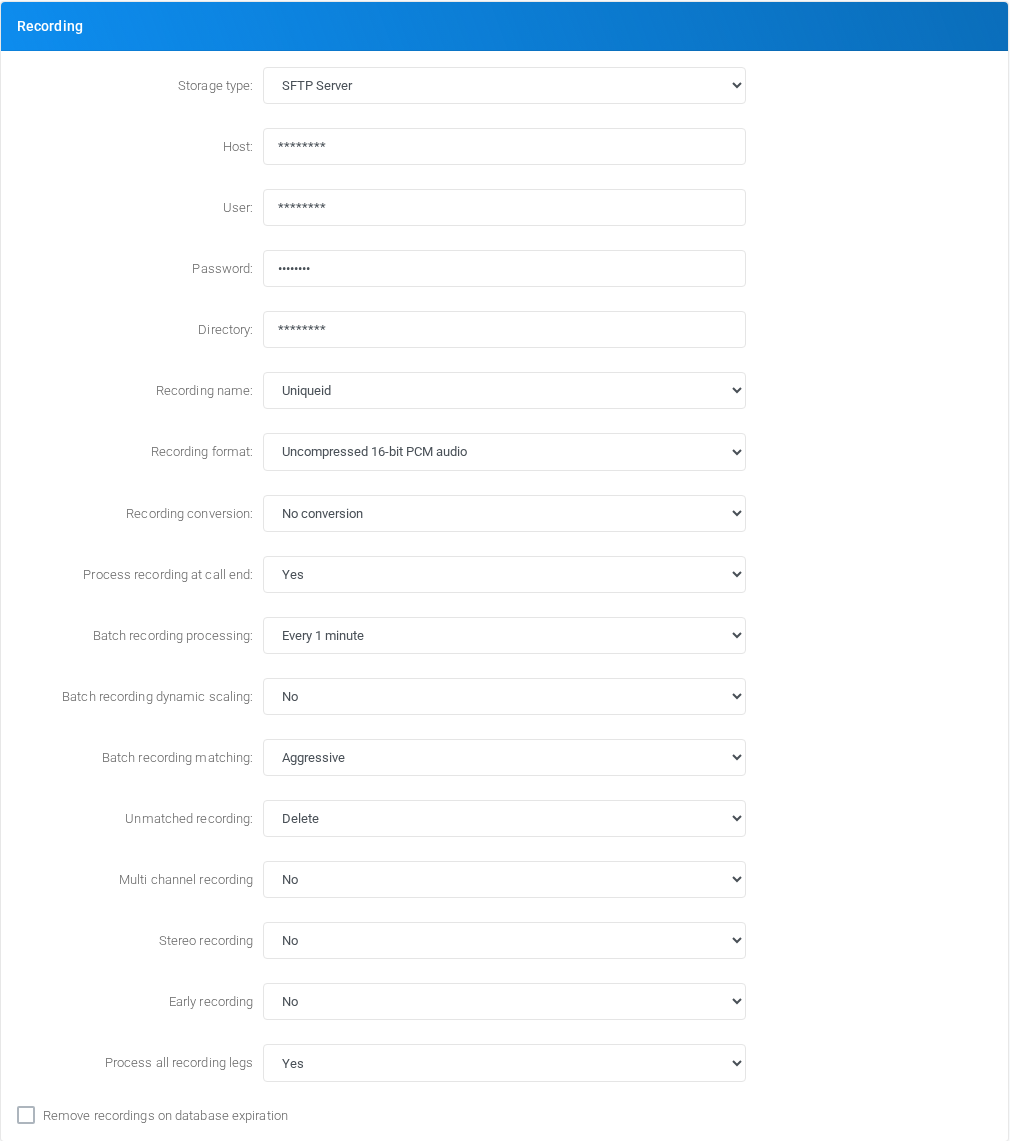
Use this section for global call-recording storage, naming, conversion, upload, and post-processing behavior.
| Field or option | Purpose |
|---|---|
| Storage type (Select) | Storage type: Sets the storage backend for call recordings. Data retention limits are applied only to Database backend (for now). |
| JSON Service Account key (Text area) | Sets the JSON Service Account key value for Recording. |
| Host (Select) | Host: If your FTP server is not using the standard port 21, you can configure the desired port using a host:port syntax. |
| User | Sets the User value for Recording. |
| Password | Sets the Password value for Recording. |
| Directory | Sets the Directory value for Recording. |
| Recording name (Select) | Recording name: You can choose the name of the recording. When using a file based recording storage, it is important to add the Random prefix to avoid multiple legs recording to be overwritten |
| Recording format (Select) | Recording format: Sets the recording format using while capturing the audio during the call. There were multiple reports about audio corruption when using MS GSM audio |
| Recording conversion (Select) | Recording conversion: After the recording has been capturing and before uploading to the choosen storage, convert to a different format. |
| Process recording at call end (Select) | Process recording at call end: Sets if to process recording at call end. When using process at call end, the recording is available immediately after the call ends, but system load average is higher, higher database connection slots are used and the call duration recorded is slightly longer) When doing only batch process, there is a low impact on system load, lower database connection slots are used, but recordings are available after the scheduled time |
| Batch recording processing (Select) | Batch recording process: Sets when to process recording left on the system. If configured, the system tries to process/upload the call recording when call ends, but in case of transfers, the process/upload of the recording can be delayed and it is processed/uploaded in batch |
| Batch recording dynamic scaling (Select) | Batch recording dynamic scaling: Starts additional upload processes if there are lots of files to be uploaded |
| Batch recording matching (Select) | Batch recording matching: A call can be split in several legs and several recordings. Normal matching will upload only recordings belonging to the primary leg. Aggressive matching will upload recording from any leg. It is possible it will be uploaded also recording that has been stopped with a feature code. |
| Unmatched recording (Select) | Unmatched recording: What has to do with recordings not matching any call unique ID. Usually they are additional recordings generated when call are transfered and can be thrown away because they are duplicates. |
| Multi channel recording (Select) | Multi channel recording: You can record each party audio in a different file |
| Stereo recording (Select) | Stereo recording: The recording will be a stereo media file with each party in a different audio stream |
| Early recording (Select) | Early recording: The recording will include any audio before the call is bridged. |
| Process all recording legs (Select) | Process all recording legs: When enabled, all the recording legs are processed regarding email, transcript, summary and sentimental analysis. |
| Remove recordings on database expiration (Checkbox) | Remove recordings on database expiration: When the recording metadata is removed from the database, the corresponding recording file is deleted. It doesn't work retroactively. |
Media Files

Use this section to configure where shared media files are stored.
| Field or option | Purpose |
|---|---|
| Storage type (Select) | Storage type: Sets the storage backend for media files |
| Host (Select) | Host: If your FTP server is not using the standard port 21, you can configure the desired port using a host:port syntax. |
| User | Sets the User value for Media Files. |
| Password | Sets the Password value for Media Files. |
| Directory | Sets the Directory value for Media Files. |
Faxes

Use this section for fax storage and fax file retention behavior.
| Field or option | Purpose |
|---|---|
| Storage type (Select) | Storage type: Sets the storage backend for faxes |
| Host (Select) | Host: If your FTP server is not using the standard port 21, you can configure the desired port using a host:port syntax. |
| User | Sets the User value for Faxes. |
| Password | Sets the Password value for Faxes. |
| Directory | Sets the Directory value for Faxes. |
| Remove faxes on database expiration (Checkbox) | Remove faxes on database expiration: When the fax metadata is removed from the database, the corresponding fax file is deleted. It doesn't work retroactively. |
Billing

Use this section for billing dashboard visibility and billing alert delivery.
| Field or option | Purpose |
|---|---|
| Dashboard show (Select) | Selects the Dashboard show behavior for Billing. |
| Alert email | Sets the Alert email value for Billing. |
Voice Synthesizer
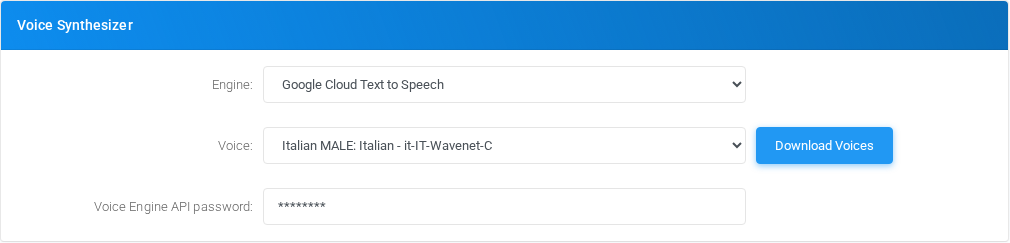
Use this section to configure the text-to-speech engine, voice, service endpoint, and credentials.
| Field or option | Purpose |
|---|---|
| Engine (Select) | Selects the Engine behavior for Voice Synthesizer. |
| Voice (Select) | Selects the Voice behavior for Voice Synthesizer. |
| Region (Select) | Selects the Region behavior for Voice Synthesizer. |
| Full Endpoint URL | Full endpoint URL with instance id like https://api.us-east.speech-to-text.watson.cloud.ibm.com/instances/82baccdd-45ee-46ff-ba1a-3cd23425b3c1/v1/synthesize |
| Voice Engine API username | Sets the Voice Engine API username value for Voice Synthesizer. |
| Rate/Pitch | Rate/Pitch parameters: You can control the rate and pitch of the voice to be created by entering them separated by a /, like -11/-70 |
| Voice Engine API password | Sets the Voice Engine API password value for Voice Synthesizer. |
Speech to Text
The Speech to Text section in Admin > Settings configures the global speech-recognition engine and the background jobs that process recorded calls. Tenant-level settings can override some values, but the global configuration is the fallback used by the PBX when a tenant does not define its own engine or credentials.
The screenshots below use fictional values and were captured from the global Admin Settings form without saving changes.
IBM Watson TTS
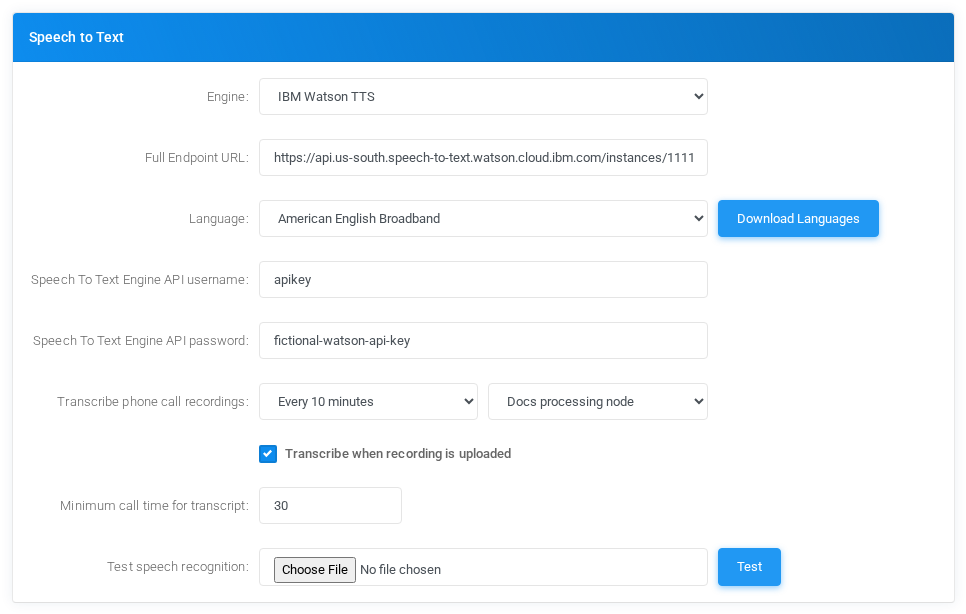
| Field | Meaning |
|---|---|
| Engine | Selects IBM Watson as the global Speech to Text provider. The historical label includes TTS, but this panel is used for recognition. |
| Full Endpoint URL | Watson recognition endpoint, including the service instance and recognize path supplied by IBM. |
| Language | Watson language and model. Choose the model that matches the spoken language and expected audio bandwidth. |
| Download Languages | Downloads or refreshes the available Watson language list after the endpoint and credentials are configured. |
| Speech To Text Engine API username | Watson credential username. Many IBM deployments use apikey as the username. |
| Speech To Text Engine API password | Watson API key or password. |
| Transcribe phone call recordings | Schedules batch transcription of recorded calls and selects the node that runs the transcript job. |
| Transcribe when recording is uploaded | Starts transcript processing immediately after a recording is uploaded, in addition to any scheduled batch processing. |
| Minimum call time for transcript | Skips recordings shorter than the configured number of seconds. |
| Test speech recognition | Uploads a WAV file and sends it to the selected engine to verify the global configuration. |
Nexiwave
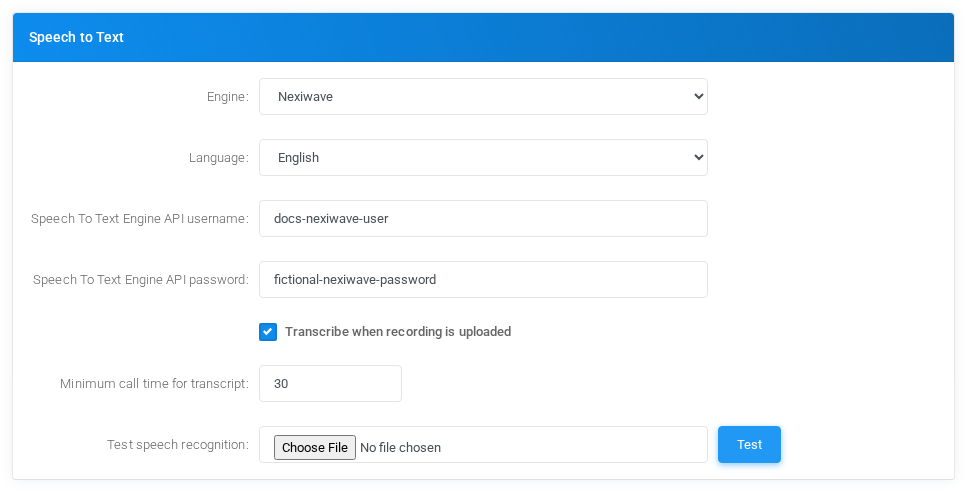
| Field | Meaning |
|---|---|
| Engine | Selects Nexiwave as the global Speech to Text provider. |
| Language | Language sent to Nexiwave for recognition. |
| Speech To Text Engine API username | Nexiwave account username. |
| Speech To Text Engine API password | Nexiwave password or API secret. |
| Transcribe when recording is uploaded | When available for the selected engine, starts transcript processing immediately after recording upload. |
| Minimum call time for transcript | Skips recordings shorter than this duration. |
| Test speech recognition | Uploads a WAV file and validates the Nexiwave settings. |
Google Cloud Speech to Text
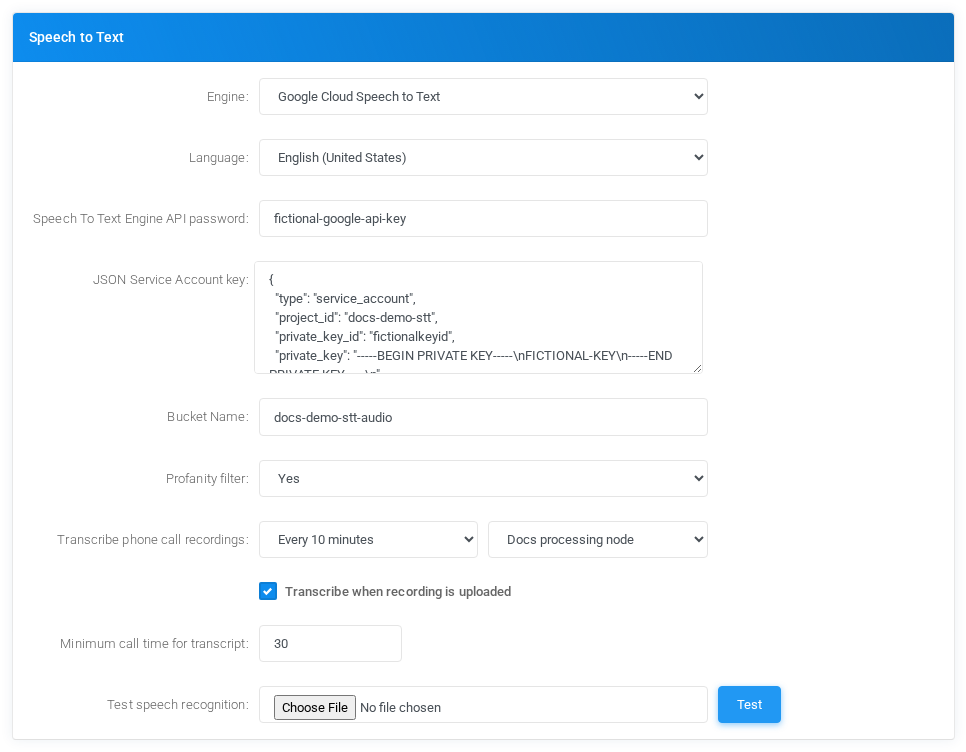
| Field | Meaning |
|---|---|
| Engine | Selects Google Cloud Speech to Text as the global recognition provider. |
| Language | Google recognition language code. Select the primary language expected in recorded calls. |
| Speech To Text Engine API password | Google API key used when audio is submitted directly without a storage bucket workflow. |
| JSON Service Account key | Service account JSON used when audio is staged in Google Cloud Storage. The service account must have access to the configured bucket. |
| Bucket Name | Google Cloud Storage bucket used to store audio before transcription. The bucket must already exist. |
| Profanity filter | Controls whether Google attempts to mask profanity in returned transcripts. |
| Transcribe phone call recordings | Schedules transcript processing for recorded calls and selects the processing node. |
| Transcribe when recording is uploaded | Starts processing immediately after recording upload. |
| Minimum call time for transcript | Prevents very short recordings from being submitted to Google. |
| Test speech recognition | Uploads a WAV file to test the Google credentials, language, and bucket/API-key configuration. |
AssemblyAI
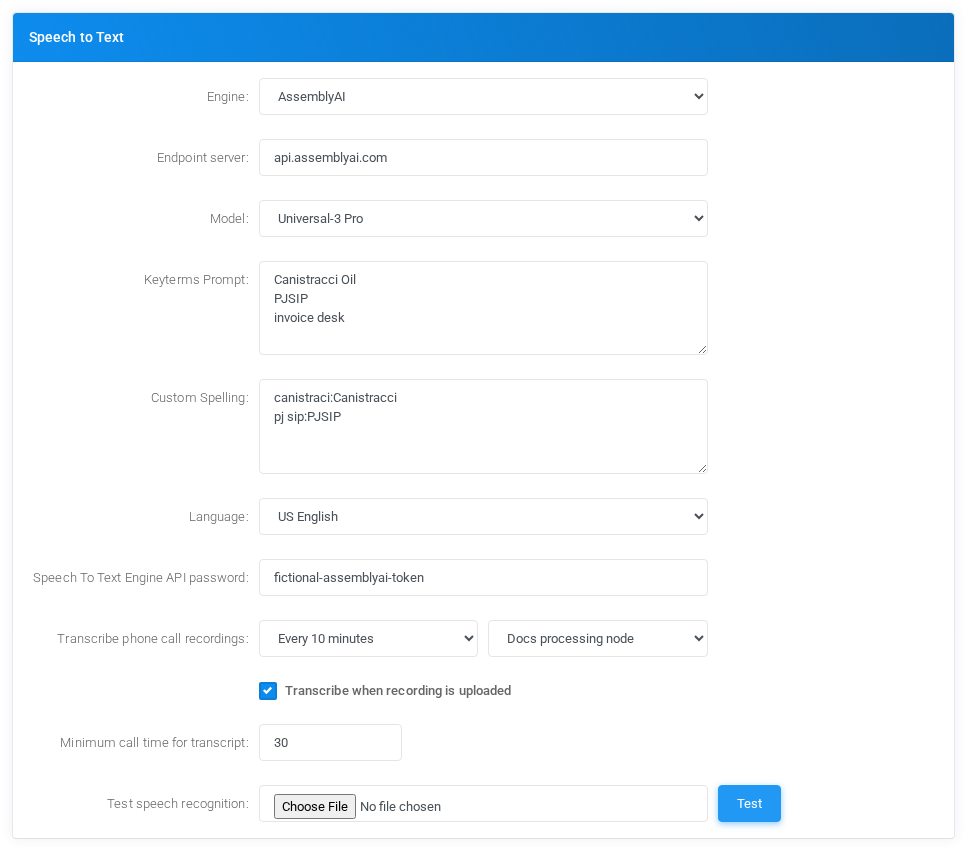
| Field | Meaning |
|---|---|
| Engine | Selects AssemblyAI as the global Speech to Text provider. |
| Endpoint server | AssemblyAI API host. Leave empty for the default host, or set a host such as api.assemblyai.com. |
| Model | AssemblyAI model used for transcript requests. Choose the model according to accuracy and fallback requirements. |
| Keyterms Prompt | One key term per line. Use it for tenant names, product names, department names, and PBX terms that should be recognized accurately. |
| Custom Spelling | One correction per line in the form heard term:correct spelling. Use it for brand names and technical words. |
| Language | AssemblyAI language selection. Automatic detection can be used when calls are multilingual or language is not predictable. |
| Speech To Text Engine API password | AssemblyAI API token. |
| Transcribe phone call recordings | Schedules transcript processing for recorded calls and selects the processing node. |
| Transcribe when recording is uploaded | Starts processing immediately after recording upload. |
| Minimum call time for transcript | Prevents short calls from being sent to AssemblyAI. |
| Test speech recognition | Uploads a WAV file to test the AssemblyAI endpoint, model, token, and language settings. |
GeminiAI
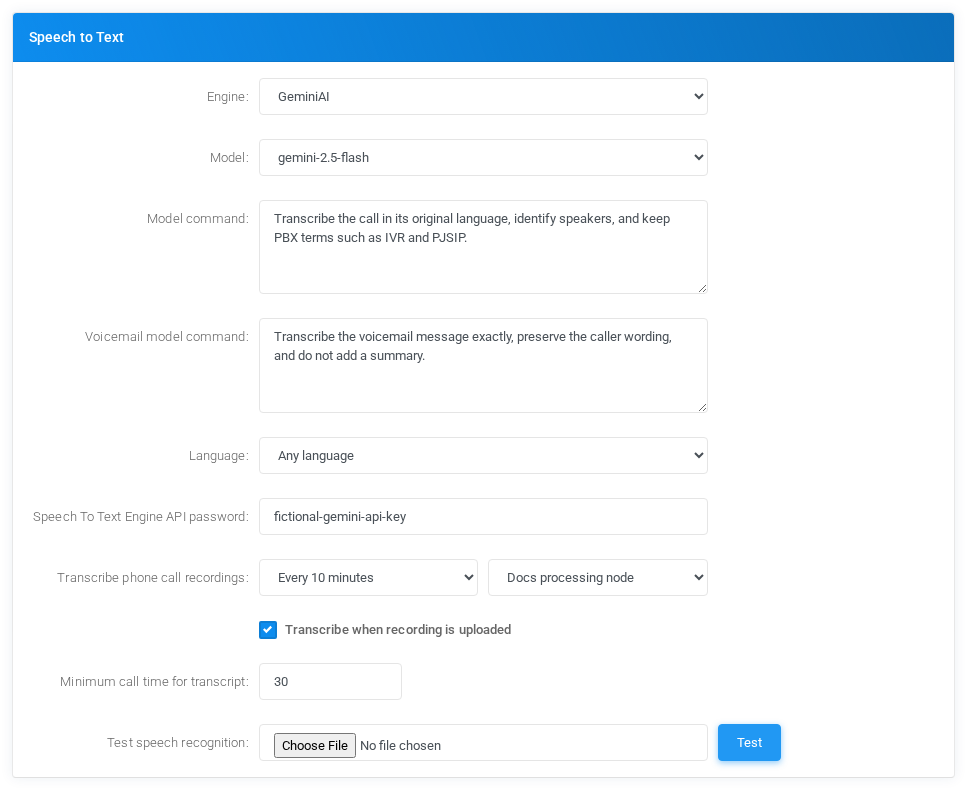
| Field | Meaning |
|---|---|
| Engine | Selects GeminiAI for speech recognition through a generative AI model. |
| Model | Gemini model used for transcription. Choose the model according to the desired balance of speed, cost, and accuracy. |
| Model command | Instruction sent to the model for the transcription task. Leave it empty to use the default instruction, or provide global guidance such as speaker separation and PBX terminology handling. |
| Voicemail model command | Instruction sent to GeminiAI when transcribing voicemail messages. Leave it empty to use the regular model command, then the default instruction. |
| Language | Recognition language option for the GeminiAI request. |
| Speech To Text Engine API password | Gemini API key. |
| Transcribe phone call recordings | Schedules transcript processing for recorded calls and selects the processing node. |
| Transcribe when recording is uploaded | Starts processing immediately after recording upload. |
| Minimum call time for transcript | Prevents short recordings from being submitted to GeminiAI. |
| Test speech recognition | Uploads a WAV file and verifies the GeminiAI model, command, key, and language settings. |
Operational Notes
- Configure provider credentials and run a test upload before enabling automatic transcription jobs.
- Use the existing transcript processing node for scheduled jobs. Do not add a node only for documentation examples.
- External transcription services can process sensitive call audio. Review privacy, retention, billing, and data-processing requirements before enabling them globally.
- Tenant-level Speech to Text settings can override global engine, language, and credentials when a tenant requires different behavior.
Generative Artificial Intelligent chat models

Use this section to configure AI chat-model access used by summary and analysis features.
| Field or option | Purpose |
|---|---|
| Engine (Select) | Selects the Engine behavior for Generative Artificial Intelligent chat models. |
| API key | API Key to use |
| Model | Model: The model for the ChatGPT |
| Temperature | Temperature: Controls the randomness or creativity of the AI model output. Leave empty to use the provider default. |
| System content (Text area) | System content: Initialize the system content |
| Summarize user content (Text area) | Summarize user content: Provide the user content to summarize, use ${TRANSCRIPT} for the transcript |
| Voicemail summarize user content (Text area) | Voicemail summarize user content: Provide the user content to summarize voicemail messages, use ${TRANSCRIPT} for the transcript. If empty, the summarize user content is used. |
| Summarize transcribed phone call recordings (Select) | Summarize transcribed phone call recordings: Schedule the summarize for transcribed phone calls |
| Summarize when recording is transcribed (Checkbox) | Summarize when recording is transcribed: By enabling this, the summarize process will start immediately after the recording is transcribed |
| Sentimental analysis user content (Text area) | Sentimental analysis user content: Provide the user content to perform sentimental analysis, use ${TRANSCRIPT} for the transcript |
| Sentimental analyze transcribed phone call recordings (Select) | Sentimental analyze transcribed phone call recordings: Schedule the sentimental analysis for transcribed phone calls |
| Sentimental analysis when recording is transcribed (Checkbox) | Sentimental analysis when recording is transcribed: By enabling this, the sentimental analysis process will start immediately after the recording is transcribed |
| Recording processing email notifications (Select) | Controls whether every requested processing email is sent or only the highest requested result for each recipient. |
Recording processing email notifications
This global setting controls which emails are sent when transcript, summary, and sentimental analysis processing is requested for the same call. Tenants using System Default inherit this value.
| Option | Behavior |
|---|---|
| Always send the notification | Sends every requested transcript, summary, and sentimental analysis notification. This is used when no value has previously been configured. |
| Send the notification only for the last process | For each email recipient, sends only the highest requested processing result. |
Last-process mode uses this priority: sentimental analysis > summary > transcript. A higher process suppresses a lower email only when email notification was requested for the same recipient. Email matching is case-insensitive, so recipients requested only for a lower process continue to receive that lower-process notification.
For example, if transcript notification is requested for A and B, summary for B and C, and sentimental analysis for C and D, A receives the transcript, B receives the summary, and C and D receive the sentimental analysis.
Suppression is based on the requested processing stage. If a higher process later fails, MiRTA PBX does not send a lower-stage fallback notification.
Fax Protocol
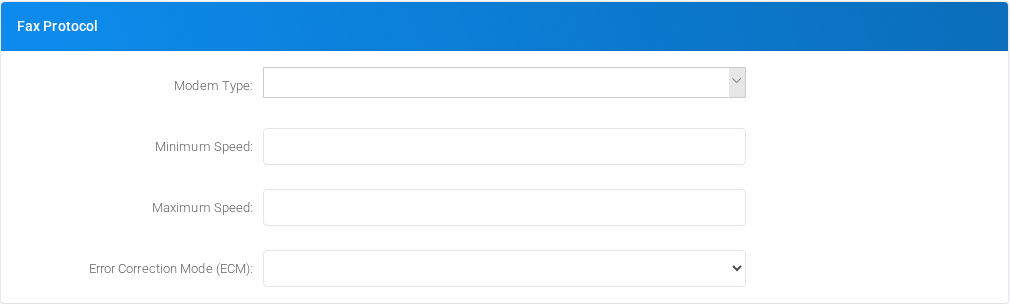
Use this section for modem protocol, speed, and ECM defaults used by fax processing.
| Field or option | Purpose |
|---|---|
| Modem Type | Sets the Modem Type value for Fax Protocol. |
| Minimum Speed | Sets the Minimum Speed value for Fax Protocol. |
| Maximum Speed | Sets the Maximum Speed value for Fax Protocol. |
| Error Correction Mode (ECM) (Select) | Selects the Error Correction Mode (ECM) behavior for Fax Protocol. |
Outbound Fax Service
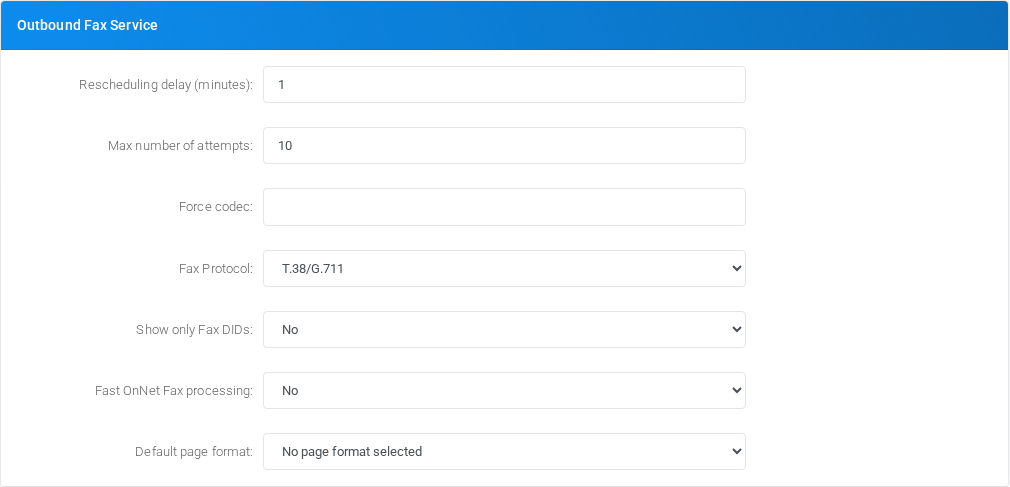
Use this section to control outbound fax retry behavior, protocol choices, DID filtering, and page format defaults.
| Field or option | Purpose |
|---|---|
| Rescheduling delay (minutes) | Sets the Rescheduling delay (minutes) value for Outbound Fax Service. |
| Max number of attempts | Sets the Max number of attempts value for Outbound Fax Service. |
| Force codec | Force codec: When dialing out a fax, request only the entered codec |
| Fax Protocol (Select) | Selects the Fax Protocol behavior for Outbound Fax Service. |
| Show only Fax DIDs (Select) | Selects the Show only Fax DIDs behavior for Outbound Fax Service. |
| Fast OnNet Fax processing (Select) | Fast OnNet Fax processing: When a fax is directed to an onnet number, just copy the fax to the destination, without really sending it |
| Default page format (Select) | Default page format: When a fax is sent and no page format is selected, this one is used |
Inbound Fax Service
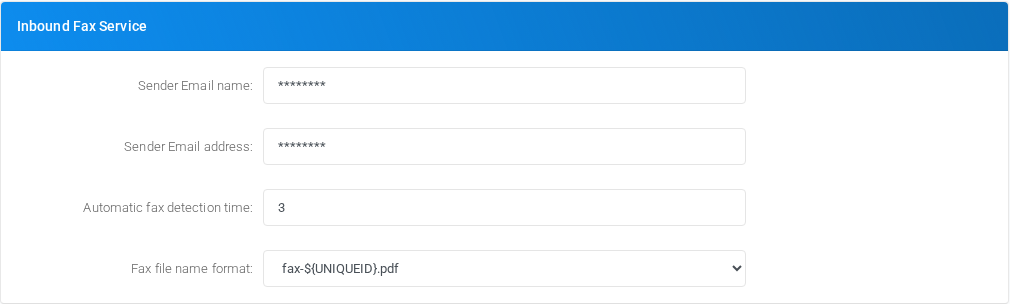
Use this section for inbound fax sender identity, detection timing, and generated fax file names.
| Field or option | Purpose |
|---|---|
| Sender Email name | Sender Email name: If no template is defined for the inbound fax service email, this sender email name will be used |
| Sender Email address | Sender Email address: If no template is defined for the inbound fax service email, this sender email address will be used |
| Automatic fax detection time | Number of seconds to wait for remote fax tone when DID set to autodetect faxes. It adds a delay in reception of calls when DID set to autodetect faxes. |
| Fax file name format (Select) | When delivering the fax by email, a different file name format can be used |
Mail to Fax Service

Use this section for network timeout and automatic disable behavior for mail-to-fax processing.
| Field or option | Purpose |
|---|---|
| Network activity timeout | Network activity timeout: Mailboxes are checked serially, this will set the amount of time to wait for any network I/O operation, in seconds |
| Automatic disable after X failures | Automatic disable after X failures: After configured failures, automatic disable the mailbox, use 0 to disable the feature |
Mail to Call Service

Use this section for network timeout and automatic disable behavior for mail-to-call processing.
| Field or option | Purpose |
|---|---|
| Network activity timeout | Network activity timeout: Mailboxes are checked serially, this will set the amount of time to wait for any network I/O operation, in seconds |
| Automatic disable after X failures | Automatic disable after X failures: After configured failures, automatic disable the mailbox, use 0 to disable the feature |
User Authentication - LDAP
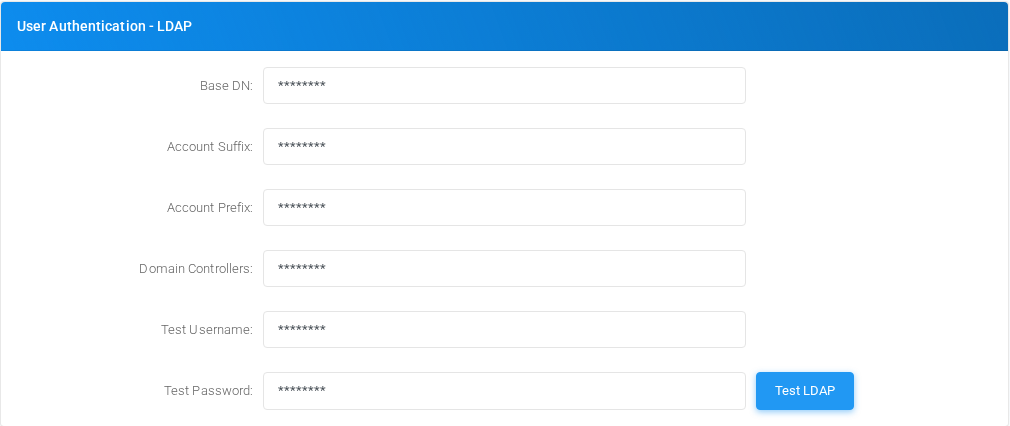
Use this section to configure LDAP binding and test credentials for external authentication.
| Field or option | Purpose |
|---|---|
| Base DN | Base DN: The base DN, like ou=users,dc=company,dc=local |
| Account Suffix | Account Suffix: Like ou=sysops |
| Account Prefix | Account Prefix: Like cn= |
| Domain Controllers | Domain Controlles: List the domain controllers including the protocol, like ldap://dc1.company.com,ldap://dc2.company.com |
| Test Username | Test Username: The username will be joined in a string like {Account Prefix}{Username},{Account Suffix},{Base DN} |
| Test Password | Sets the Test Password value for User Authentication - LDAP. |
Conferencing

Use this section for conference email sender defaults.
| Field or option | Purpose |
|---|---|
| Sender Email name | Sets the Sender Email name value for Conferencing. |
| Sender Email address | Sets the Sender Email address value for Conferencing. |
Voicemail

Use this section for voicemail audio format visibility and defaults.
| Field or option | Purpose |
|---|---|
| Audio format configured (Select) | Audio format configured: Set to the audio format chosen in /etc/asterisk/voicemail.conf. This is not for choosing the voicemail audio format, but to make the web interface use the same audio format chosen in the voicemail configuration file. |
Voicemail backup

Use this section to configure backup storage for voicemail messages.
| Field or option | Purpose |
|---|---|
| Storage type (Select) | Storage type: Sets the storage backend for voicemail backup. There is no data retention limit. |
| Host (Select) | Host: If your FTP server is not using the standard port 21, you can configure the desired port using a host:port syntax. |
| User | Sets the User value for Voicemail backup. |
| Password | Sets the Password value for Voicemail backup. |
| Directory | Sets the Directory value for Voicemail backup. |
| Voicemail recording name (Select) | Voicemail recording name: You can choose the name of the recording. |
Provisioning
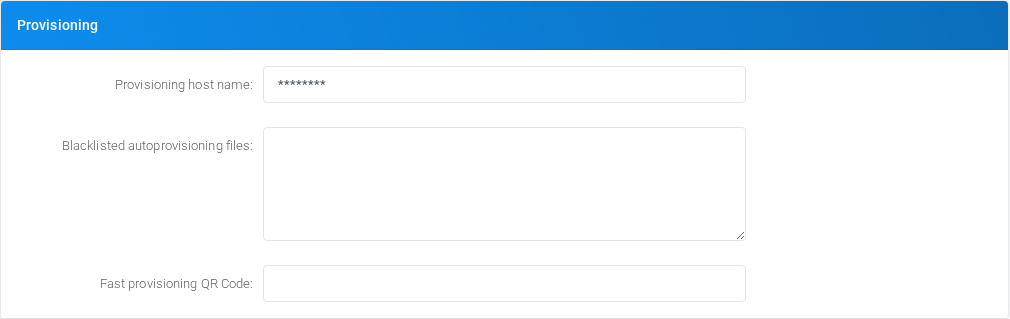
Use this section for provisioning host, blocked provisioning files, and fast-provisioning QR code format.
| Field or option | Purpose |
|---|---|
| Provisioning host name | Provisioning host name: Set the provisioning host name reported in the Configuration/Provisioning/Phones page. If left blank will automatically use the one defined in the theme selected, in the tenant or the host name used to access the web interface. |
| Blacklisted autoprovisioning files (Text area) | Blacklisted autoprovisioning files: If a file matches one of these regex, then the usual MAC matching is disabled and only a custom file can be served, if available |
| Fast provisioning QR Code | Fast provisioning QR Code: If enabled in the tenant, create a QR Code in the Configuration/Extensions page to provision the extension on supporting softphones. You can use the following variables: $username, $secret, $macaddress, $password, $http_user and $http_password |
Inbound Unassigned DIDs

Use this section for alerting and media playback when an inbound DID is not assigned.
| Field or option | Purpose |
|---|---|
| Alert Email address | Sets the Alert Email address value for Inbound Unassigned DIDs. |
| Media file to play | Sets the Media file to play value for Inbound Unassigned DIDs. |
Disabled Tenants
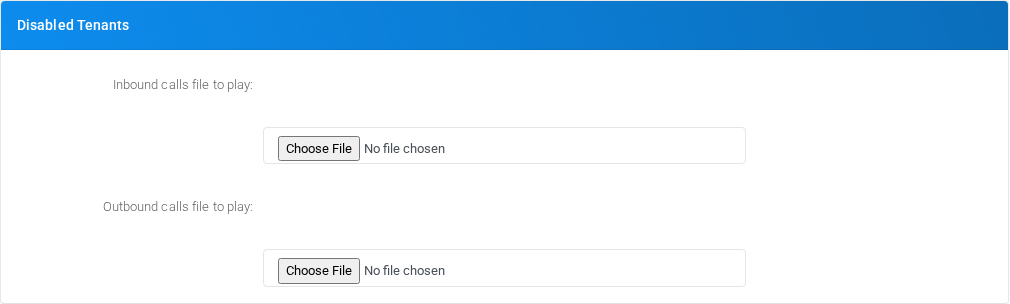
Use this section for the media played when disabled tenants receive or place calls.
| Field or option | Purpose |
|---|---|
| Inbound calls file to play | Sets the Inbound calls file to play value for Disabled Tenants. |
| Outbound calls file to play | Sets the Outbound calls file to play value for Disabled Tenants. |
CSV Exports
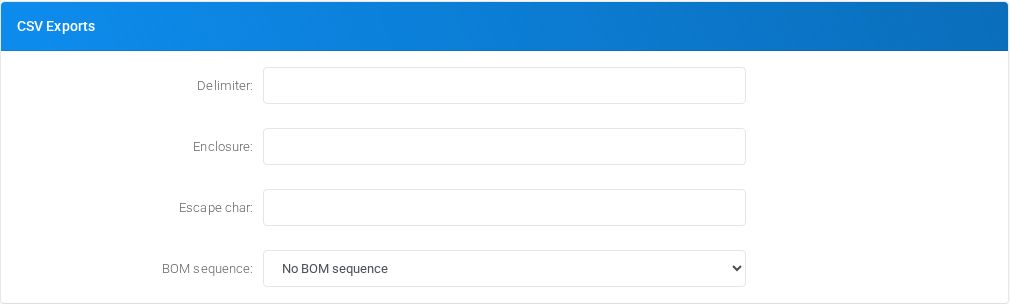
Use this section for CSV delimiter, enclosure, escape, and BOM defaults.
| Field or option | Purpose |
|---|---|
| Delimiter | Sets the Delimiter value for CSV Exports. |
| Enclosure | Sets the Enclosure value for CSV Exports. |
| Escape char | Sets the Escape char value for CSV Exports. |
| BOM sequence (Select) | Selects the BOM sequence behavior for CSV Exports. |
Inbound calls

Use this section for inbound privacy defaults.
| Field or option | Purpose |
|---|---|
| Privacy (Select) | Selects the Privacy behavior for Inbound calls. |
Outbound calls
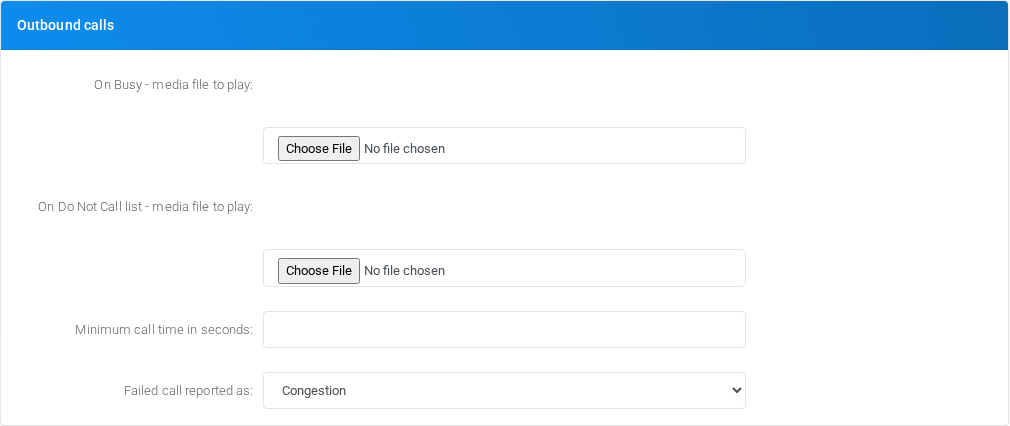
Use this section for busy or blocked-call media, minimum call time, and failed-call reporting.
| Field or option | Purpose |
|---|---|
| On Busy - media file to play | Sets the On Busy - media file to play value for Outbound calls. |
| On Do Not Call list - media file to play | Sets the On Do Not Call list - media file to play value for Outbound calls. |
| Minimum call time in seconds | Minimum call time in second: Enter the minimum call time, in seconds, otherwise the call will be not even started |
| Failed call reported as (Select) | Failed call reported as: When a call is unroutable or all providers fail to connect, report as |
CNAM service
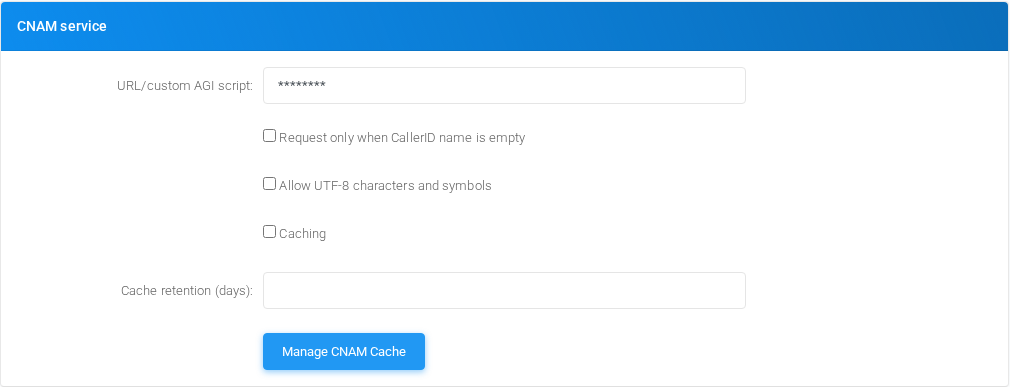
Use this section to configure caller-name lookup, caching, and UTF-8 handling.
| Field or option | Purpose |
|---|---|
| URL/custom AGI script | URL: Enter the CNAM URL using %%NUM%% as placeholder for the number of phone. Or the name of an agi script returning the CNAM value As example for OpenCNAM: https://api.opencnam.com/v2/phone/%%NUM%%?format=pbx&account_sid=ACCOUNT_SID&auth_token=AUTH_TOKEN replacing ACCOUNT_SID and AUTH_TOKEN with the one provided by OpenCNAM |
| Request only when CallerID name is empty (Checkbox) | Enables or disables Request only when CallerID name is empty. |
| Allow UTF-8 characters and symbols (Checkbox) | Enables or disables Allow UTF-8 characters and symbols. |
| Caching (Checkbox) | Enables or disables Caching. |
| Cache retention (days) | Sets the Cache retention (days) value for CNAM service. |
| Manage CNAM Cache (Action) | Opens or runs the related administration action. |
Switchboard

Use this section for switchboard websocket connection defaults.
| Field or option | Purpose |
|---|---|
| Websocket hostname:port to connect | Websocket hostname:port to connect: This is the fully qualified domain name of server running the AMI Router |
| SSL Usage (Select) | SSL usage: Here you define if the client javascript application will talk to the host using SSL or not. |
WebRTC
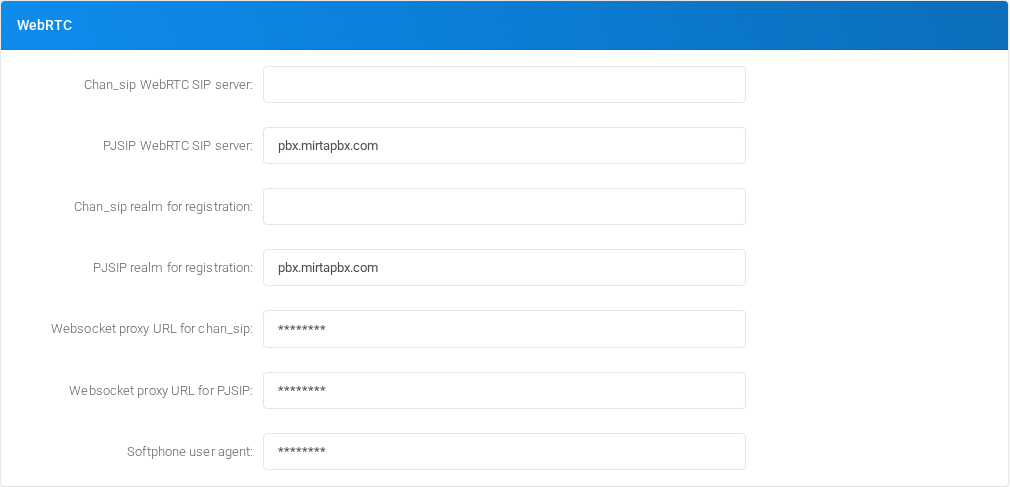
Use this section for WebRTC SIP servers, realms, websocket proxies, and softphone user-agent settings.
| Field or option | Purpose |
|---|---|
| Chan_sip WebRTC SIP server | Chan_sip WebRTC server: When authenticating with a chan_sip account, this server will be used for the WebRTC SIP phone. |
| PJSIP WebRTC SIP server | PJSIP WebRTC server: When authenticating with a PJSIP account, this server will be used for the WebRTC SIP phone. |
| Chan_sip realm for registration | Chan_sip realm for registration: Server realm to be used by the switchboard extensions to register using chan_sip. |
| PJSIP realm for registration | PJSIP realm for registration: Server realm to be used by the switchboard extensions to register using PJSIP. |
| Websocket proxy URL for chan_sip | Websocket proxy URL for chan_sip: This is the websocket proxy URL to use for switchboard extensions to register when using chan_sip. |
| Websocket proxy URL for PJSIP | Websocket proxy URL for PJSIP: This is the websocket proxy URL to use for switchboard extensions to register when using PJSIP. |
| Softphone user agent | Softphone user agent: The user agent to report to the system. |
SMS

Use this section for SMS DID filtering and SMS length limits.
| Field or option | Purpose |
|---|---|
| Show CallerID DIDs for SMS (Select) | Show CallerID DIDs for SMS: Permit to Show only DIDs configured to receive SMS |
| Max SMS length | Max SMS length: Enter the max number of character accepted for an SMS in the portal |
Security
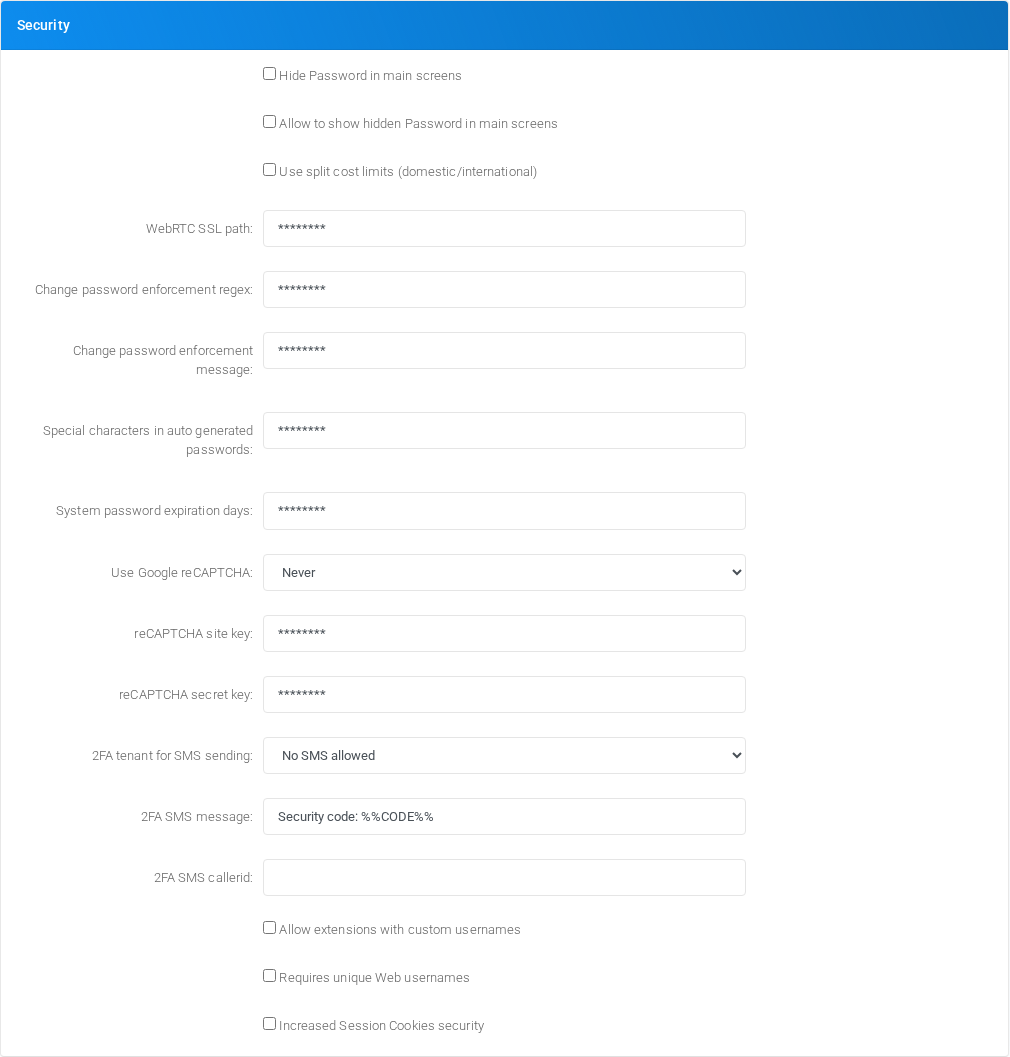
Use this section for password visibility, password policy, reCAPTCHA, two-factor authentication, custom extension usernames, web username uniqueness, and session-cookie hardening.
| Field or option | Purpose |
|---|---|
| Hide Password in main screens (Checkbox) | Enables or disables Hide Password in main screens. |
| Allow to show hidden Password in main screens (Checkbox) | Enables or disables Allow to show hidden Password in main screens. |
| Use split cost limits (domestic/international) (Checkbox) | Enables or disables Use split cost limits (domestic/international). |
| WebRTC SSL path | WebRTC SSL path: Enter the full path, usually /etc/asterisk/certificates/yourdomain.pem to allow WebRTC clients. You need to reload the sip module or prune the clients when this is updated |
| Change password enforcement regex | Change password enforcement regex: Enter the regex to use for passwords entered by the user in the Login/Change Password |
| Change password enforcement message | Change password enforcement message: Enter the message to use when the passwords entered by the user in the Login/Change Password doesn't meet the required regex |
| Special characters in auto generated passwords | Special characters in auto generated passwords: List of special characters used in the auto generation of passwords. Some softphones or provisioning templates can't use any character |
| System password expiration days | System password expiration days: Request a password change for system users after defined days since last change. Leave blank to disable password expiration. |
| Disable inactive users after days | Automatically disables system users and extension web users when their last successful login is older than the configured number of days. Use 0 to disable future automatic inactivity checks. |
| Use Google reCAPTCHA (Select) | SSL usage: Use Google reCAPTCHA |
| reCAPTCHA site key | reCAPTCHA site key: You need to register on google.com and obtain a reCAPTCHA API key for your list of domains |
| reCAPTCHA secret key | reCAPTCHA secret key: You need to register on google.com and obtain a reCAPTCHA API key for your list of domains |
| 2FA tenant for SMS sending (Select) | Selects the 2FA tenant for SMS sending behavior for Security. |
| 2FA SMS message | 2FA SMS message: This is the message delivering the code for 2FA authentication, use %%CODE%% for replace the actual code |
| 2FA SMS callerid | 2FA SMS callerid: This is the callerid to use when delivering the code for 2FA authentication |
| Allow extensions with custom usernames (Checkbox) | Allow extensions with custom usernames: Allow to create extensions with custom usernames. |
| Requires unique Web usernames (Checkbox) | Require unique Web usernames: Requires extension web usernames to be unique among all the tenants. |
| Increased Session Cookies security (Checkbox) | Increased Session Cookies security: Activate several restriction on the session cookie usage to increase security. |
Inactive-user disablement
Daily housekeeping applies this policy only when Disable inactive users after days is greater than 0. Accounts with no successful login history are ignored, and the built-in admin system user is exempt.
A successful portal login updates the system-user or extension-user timestamp after password, IP filter, two-factor authentication, and password-expiration checks complete. An authorized switchboard login also updates the extension-user timestamp. SIP registration and WebRTC credential requests are not affected and do not update the timestamp.
Changing the setting to 0 stops future automatic disablement but does not restore accounts already disabled. Open the system user or extension, select Re-enable on save, and save. The historical last-login timestamp is retained and the account receives one configured inactivity period of grace.
Logging
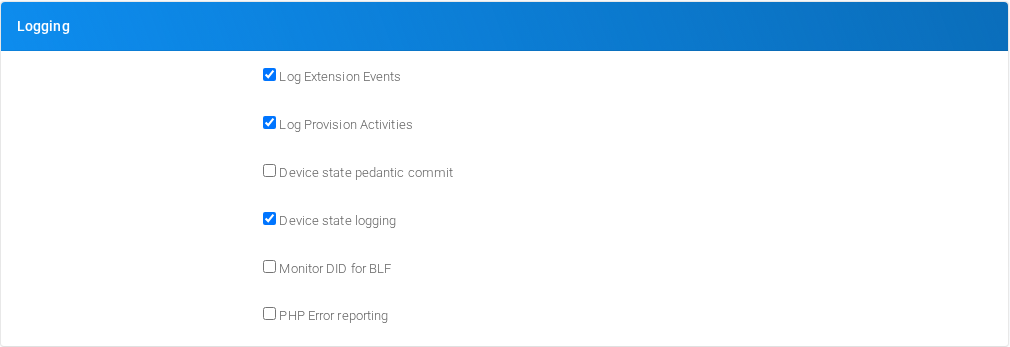
Use this section for extension event logging, provisioning activity logging, device-state logging, latency logging, and PHP error reporting.
| Field or option | Purpose |
|---|---|
| Log Extension Events (Checkbox) | Log Extension Events: Log any change in the extension state, you can review these logs from Status/Peers |
| Log Provision Activities (Checkbox) | Log Provision Activities: Log any provision request from phones |
| Device state pedantic commit (Checkbox) | Device state pedantic commit: Rewrite the state of extension at every registration, even if the state has not changed |
| Device state logging (Checkbox) | Device state logging: Log any devstate activity using syslog |
| Monitor DID for BLF (Checkbox) | Monitor DID for BLF: Monitor any DID state for BLF |
| PHP Error reporting (Checkbox) | PHP Error reporting: Show all the bad PHP coding, warnings and errors. You don't need it. |
Music On Hold
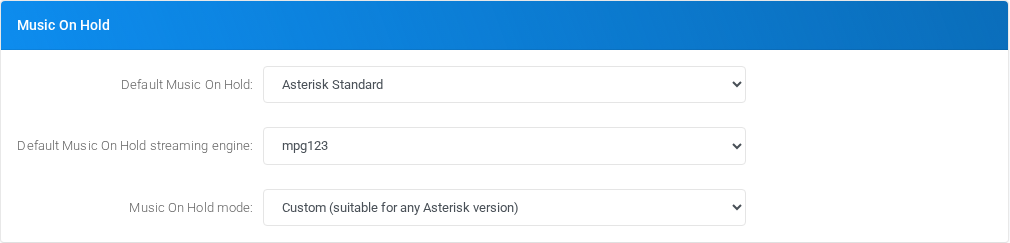
Use this section for default music-on-hold selection and streaming mode.
| Field or option | Purpose |
|---|---|
| Default Music On Hold (Select) | Selects the Default Music On Hold behavior for Music On Hold. |
| Default Music On Hold streaming engine (Select) | Selects the Default Music On Hold streaming engine behavior for Music On Hold. |
| Music On Hold mode (Select) | Selects the Music On Hold mode behavior for Music On Hold. |
Stats

Use this section for statistics calculation behavior.
| Field or option | Purpose |
|---|---|
| Count transfer as answered (Select) | Agent Activity: Count transferred calls, even parked, as answered calls. |
MS Teams integration
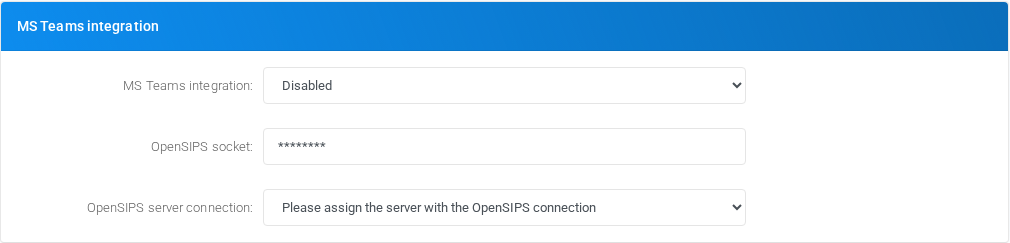
Use this section for Microsoft Teams integration and OpenSIPS connectivity.
| Field or option | Purpose |
|---|---|
| MS Teams integration (Select) | MS Teams integration: Enable the MS Teams integration. You need to define the MS Teams address in the Admin/Tenant |
| OpenSIPS socket | OpenSIPS socket: Something like tls:__ip_address__:5067 where the OpenSIPS is listening |
| OpenSIPS server connection (Select) | OpenSIPS server connection: The server who has the connection to the OpenSIPS server |
QueueMetrics API

Use this section for QueueMetrics integration behavior.
| Field or option | Purpose |
|---|---|
| QueueMetrics API (Select) | QueueMetrics API: Enable the QueueMetrics API by sending to QueueMetrics the logs from the selected queues |
| QueueMetrics delay | QueueMetrics delay: How many milliseconds to wait between two API calls to QueueMetrics |
Theming
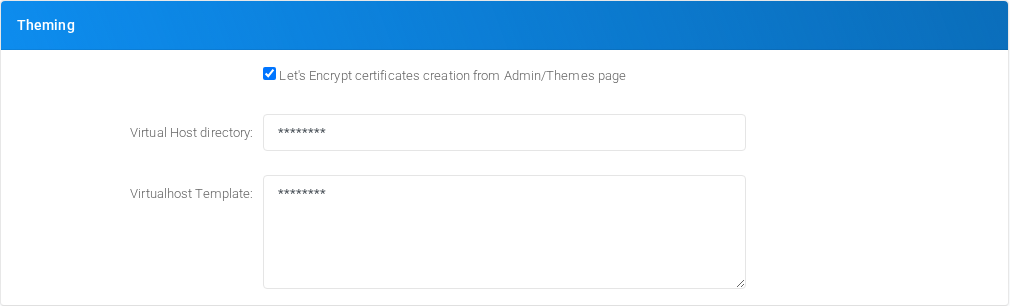
Use this section for theme-related certificate and virtual-host defaults.
| Field or option | Purpose |
|---|---|
| Let's Encrypt certificates creation from Admin/Themes page (Checkbox) | Let's Encrypt certificates creation from Admin/Themes page: Allow the system to automatically generate and optionally renew Let's Encrypt certificates |
| Virtual Host directory | Virtual Host directory: Allow the system to automatically generate virtual host configurations. Usually it is /etc/httpd/conf.d |
| Virtualhost Template (Text area) | Sets the Virtualhost Template value for Theming. |
Queue History Theming

Use this section for queue-history filtering behavior.
| Field or option | Purpose |
|---|---|
| Queue History easy filters (Select) | Queue History easy filters: In Status/Queue History show easy filters like in Status/Stats. |
Dashboard Theming

Use this section for dashboard chart defaults.
| Field or option | Purpose |
|---|---|
| Call quantity most recent day (Select) | Call quantity most recent day: Most recent day to show in the Call Quantity tab. |
Call History Theming
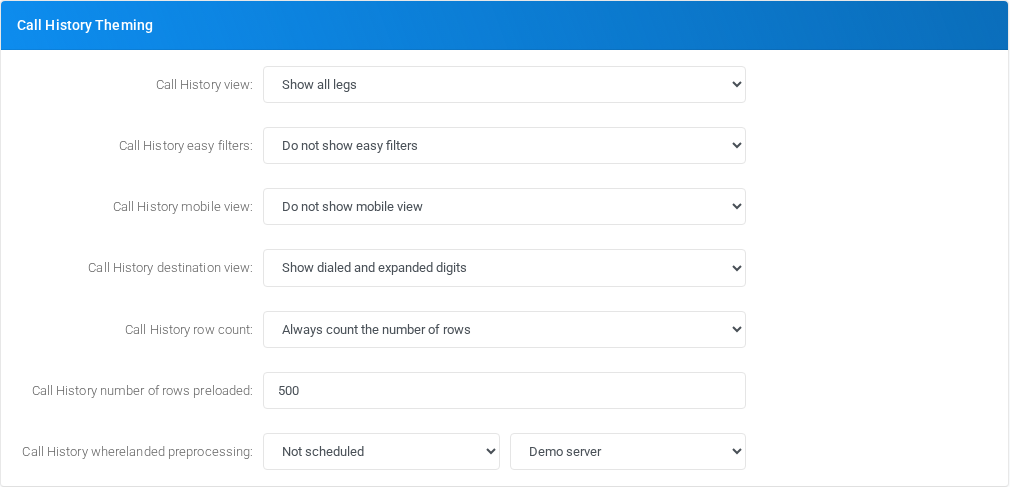
Use this section for call-history display, filtering, row loading, and preprocessing behavior.
| Field or option | Purpose |
|---|---|
| Call History view (Select) | Call History view: In Status/Call History controls if to show all legs or try to show compact by grouping them. |
| Call History easy filters (Select) | Call History easy filters: In Status/Call History show easy filters like in Status/Stats. |
| Call History mobile view (Select) | Call History mobile view: In Status/Call History show a mobile phone optimized view when using a smartphone |
| Call History destination view (Select) | Call History destination view: In Status/Call History controls how to display the destination number dialed. |
| Call History row count (Select) | Call History row count: Counting every row in the Call History is slow and most of the time, useless. Using this option you can speed up the counting of rows |
| Call History number of rows preloaded | Call History number of rows preloaded: Specifies how many rows to preload when loading the Call History |
| Call History wherelanded preprocessing (Select) | Call history wherelanded preprocessing: Accessing the call history can be slow because the system needs to compute each call real destination. You can schedule a preprocessing to speed up access to Call history |
Advanced Customization
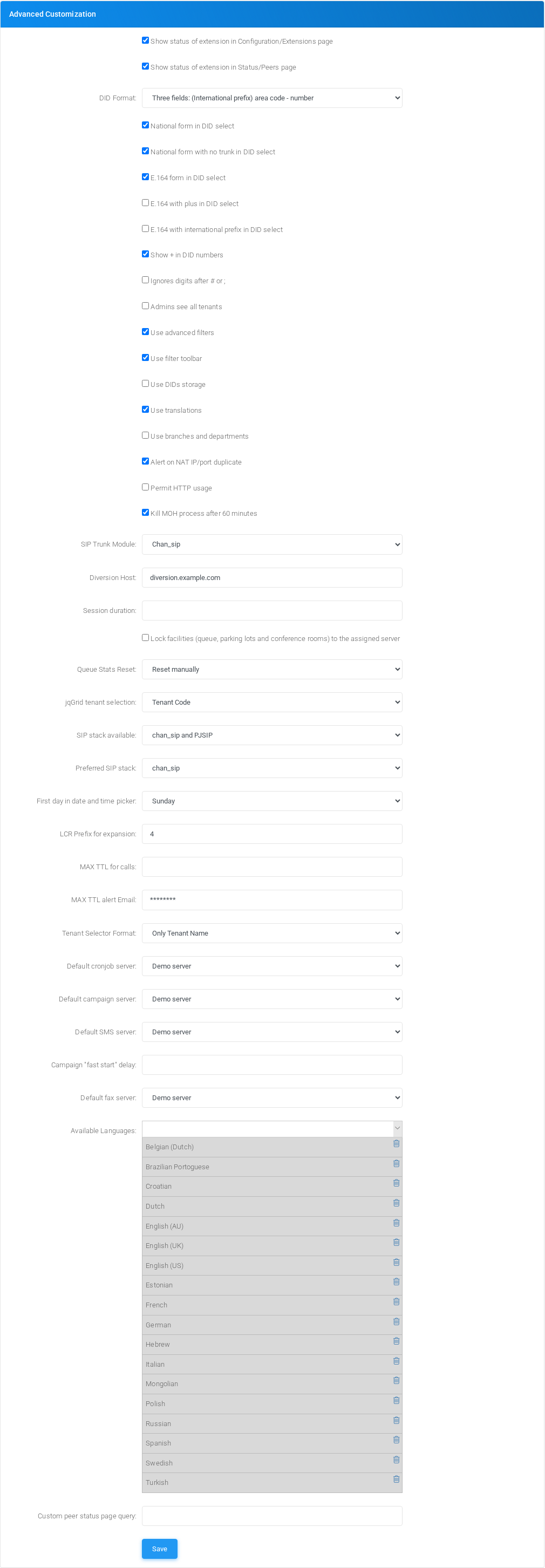
Use this section for advanced UI, DID format, tenant visibility, SIP Diversion header host handling, SIP stack, cron server, language, and low-level routing defaults.
| Field or option | Purpose |
|---|---|
| Show status of extension in Configuration/Extensions page (Checkbox) | Enables or disables Show status of extension in Configuration/Extensions page. |
| Show status of extension in Status/Peers page (Checkbox) | Enables or disables Show status of extension in Status/Peers page. |
| DID Format (Select) | Selects the DID Format behavior for Advanced Customization. |
| National form in DID select (Checkbox) | Enables or disables National form in DID select. |
| National form with no trunk in DID select (Checkbox) | Enables or disables National form with no trunk in DID select. |
| E.164 form in DID select (Checkbox) | Enables or disables E.164 form in DID select. |
| E.164 with plus in DID select (Checkbox) | Enables or disables E.164 with plus in DID select. |
| E.164 with international prefix in DID select (Checkbox) | Enables or disables E.164 with international prefix in DID select. |
| Show + in DID numbers (Checkbox) | Enables or disables Show + in DID numbers. |
| Ignores digits after # or ; (Checkbox) | Enables or disables Ignores digits after # or ;. |
| Admins see all tenants (Checkbox) | Enables or disables Admins see all tenants. |
| Use advanced filters (Checkbox) | Enables or disables Use advanced filters. |
| Use filter toolbar (Checkbox) | Enables or disables Use filter toolbar. |
| Use DIDs storage (Checkbox) | Enables or disables Use DIDs storage. |
| Use translations (Checkbox) | Enables or disables Use translations. |
| Use branches and departments (Checkbox) | Enables or disables Use branches and departments. |
| Alert on NAT IP/port duplicate (Checkbox) | Enables or disables Alert on NAT IP/port duplicate. |
| Permit HTTP usage (Checkbox) | Enables or disables Permit HTTP usage. |
| Kill MOH process after 60 minutes (Checkbox) | Enables or disables Kill MOH process after 60 minutes. |
| SIP Trunk Module (Select) | SIP Trunk Module: Use the defined asterisk module when passing the call from one server to the other |
| Diversion Host | Diversion Host: Host to use in SIP Diversion headers. Leave empty to use the system name. |
| Session duration | Session duration is read from php.ini, but it can be set here (in seconds). 1 hour are 3600 seconds. |
| Lock facilities (queue, parking lots and conference rooms) to the assigned server (Checkbox) | Lock facilityies: When defining a queue, a conference room or a parking lot, you need to assign them to one of your servers. If left to be assigned automatically, they will be run from the first server trying to use it. They will be moved to another server when the server where they are assigned will stop answering. You can lock them to one server, so they will not be reassigned to another server if the server running them will be temporarily not answering. |
| Queue Stats Reset (Select) | Queue Stats Reset: Reset the Asterisk mantained stats like SLA and SLA2 at midnight. |
| jqGrid tenant selection (Select) | Selects the jqGrid tenant selection behavior for Advanced Customization. |
| SIP stack available (Select) | Selects the SIP stack available behavior for Advanced Customization. |
| Preferred SIP stack (Select) | Selects the Preferred SIP stack behavior for Advanced Customization. |
| First day in date and time picker (Select) | Selects the First day in date and time picker behavior for Advanced Customization. |
| LCR Prefix for expansion | Sets the LCR Prefix for expansion value for Advanced Customization. |
| MAX TTL for calls | MAX TTL for calls: A call can trigger several destinations, each destination can trigger several other destinations. To avoid loops or infinite running calls, a maximal number of steps can be set for any call. By default it is 100. |
| MAX TTL alert Email | MAX TTL alert Email: When a TTL expires it can be due to a loop. A loop is dangerous because it uses lots of CPU power. You can be noticed when it happens. |
| Tenant Selector Format (Select) | Selects the Tenant Selector Format behavior for Advanced Customization. |
| Default cronjob server (Select) | Selects the Default cronjob server behavior for Advanced Customization. |
| Default campaign server (Select) | Selects the Default campaign server behavior for Advanced Customization. |
| Default SMS server (Select) | Selects the Default SMS server behavior for Advanced Customization. |
| Campaign "fast start" delay | Campaign fast start delay: Campaigns to be started are checked every minute. This means, when starting a campaign using a feature code, it can take up to 60 seconds before it really starts. You can configure here a delay in seconds, activating a more fine check for campaign start. Setting to empty, will stop the fast start feature. |
| Default fax server (Select) | Selects the Default fax server behavior for Advanced Customization. |
| Available Languages | Sets the Available Languages value for Advanced Customization. |
| Custom peer status page query | Custom peer status page query: You can provide a query to be executed for each of the peers in peer status, returning a list of fields. Use %%PEERNAME%% for the peer name, like select mailbox as Mailbox,allow as Allow from sipfriends where data-inputname= |
| Save, Save (Action) | Opens or runs the related administration action. |
Administration Links
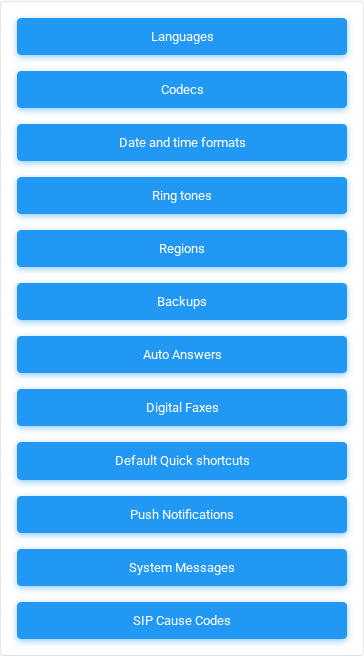
Use this side panel to open related global administration tools.
| Field or option | Purpose |
|---|---|
| Languages (Action) | Opens the related global administration page. |
| Codecs (Action) | Opens the related global administration page. |
| Date and time formats (Action) | Opens the related global administration page. |
| Ring tones (Action) | Opens the related global administration page. |
| Regions (Action) | Opens the related global administration page. |
| Backups (Action) | Opens the related global administration page. |
| Auto Answers (Action) | Opens the related global administration page. |
| Digital Faxes (Action) | Opens the related global administration page. |
| Default Quick shortcuts (Action) | Opens the related global administration page. |
| Push Notifications (Action) | Opens the related global administration page. |
| System Messages (Action) | Opens the related global administration page. |
| SIP Cause Codes (Action) | Opens the related global administration page. |
No comments to display
No comments to display