
Overview
The Call History chapter documents the tenant call-history screens used to review completed and attempted calls. The screenshots below were captured from the live interface with fictional call data in the Canistracci Oil tenant.
Open Status > Call History and confirm that the tenant selector at the top of the screen points to the tenant you want to inspect. Call History is a diagnostic area: use it to search, export, listen to recordings, and open related log pages. Change configuration objects from their configuration pages instead of editing status data.
Complete Call History
Complete Call History shows the detailed call-detail view. It is the best view for troubleshooting because it exposes individual call legs, linked IDs, destination context, final landing information, provider account, cost fields when billing is enabled, and optional transcript, summary, and sentiment columns.
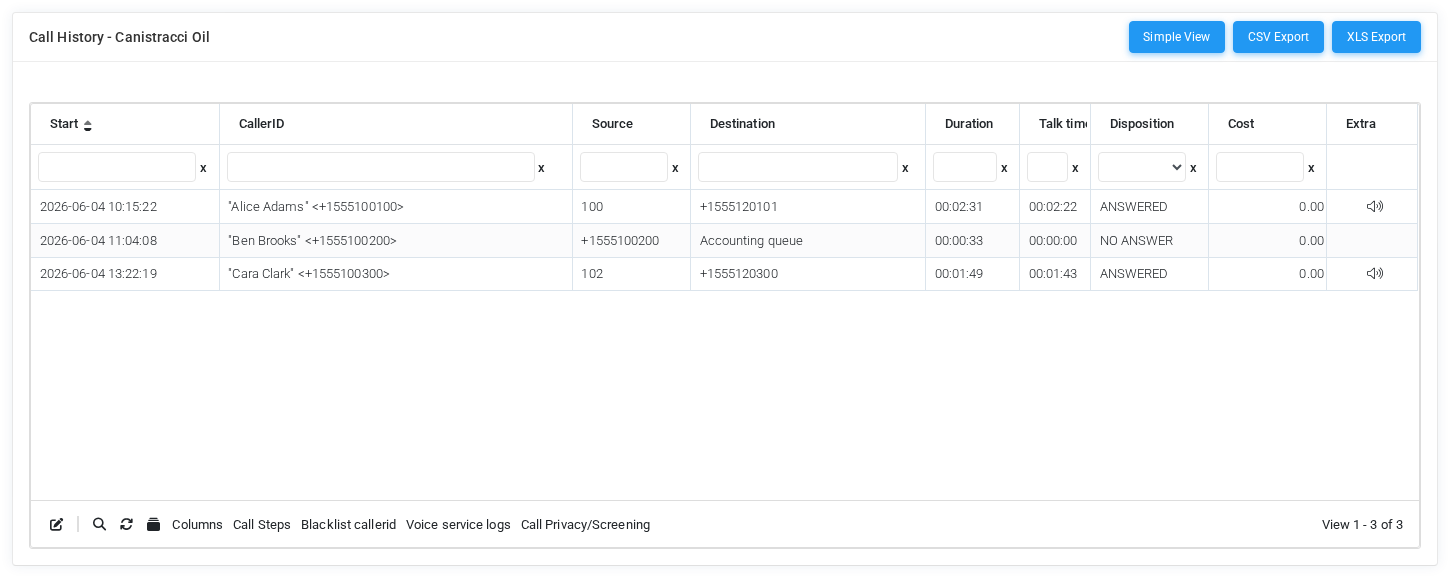
| Area | How to use it |
|---|---|
| Filters | Use the date range, source, destination, and additional filters before reviewing or exporting. Narrow filters keep the grid responsive and make exports easier to audit. |
| Columns | Select Columns to hide, show, and reorder fields. The browser stores the column selection locally, so each administrator can keep a personal troubleshooting layout. |
| Rows | Each row represents a call-detail entry or relevant call leg. Use linked ID, unique ID, destination, disposition, duration, and where-landed fields to follow how the call moved through the PBX. |
| Recordings | Recording icons open the recording player when recordings are available. The player can expose main, transmit, and receive recordings, plus copy, download, or delete controls depending on permissions. |
| View switch | Select Simple View to move from detailed call legs to the summarized call-history view. |
Simple Call History
Simple Call History groups call data into an easier operational view. It is useful for help-desk work, quick call searches, and user-facing explanations because it focuses on date, direction, caller ID, dialed number, disposition, duration, and talk time.
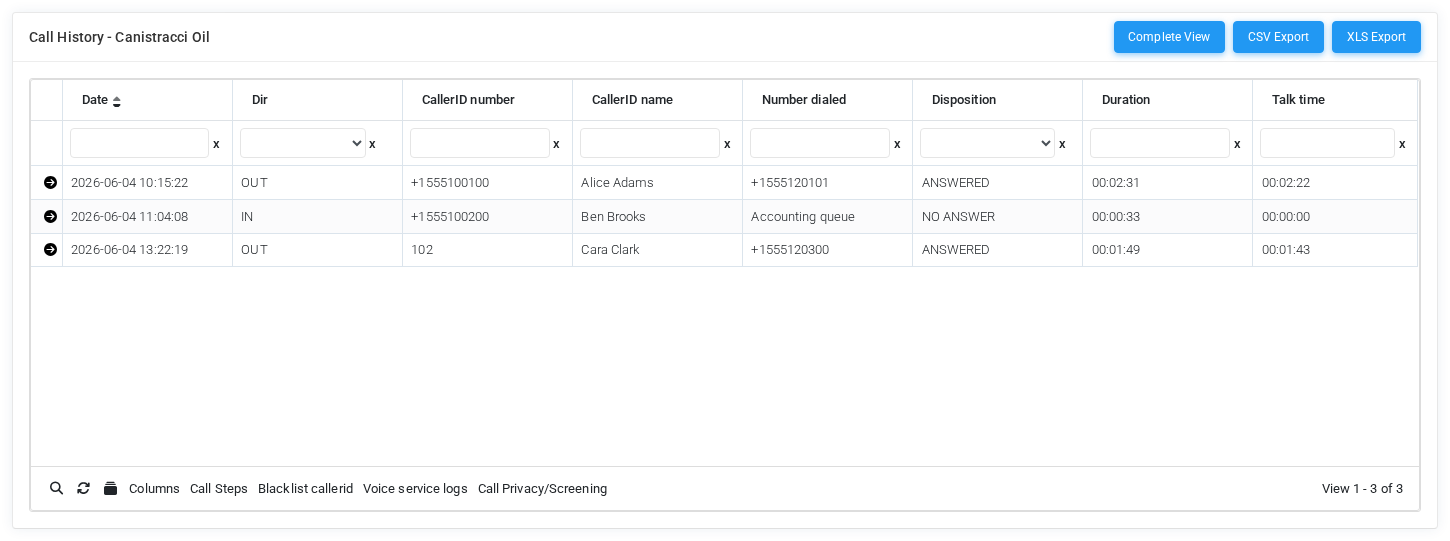
| Area | How to use it |
|---|---|
| Summary rows | Each row is a simplified call record. Expand a row to inspect the underlying detailed call legs without leaving the simple view. |
| Direction and disposition | Use direction to distinguish inbound, outbound, local, and active calls. Use disposition to quickly find answered, missed, failed, busy, or abandoned calls. |
| Columns | Use Columns to keep the grid compact for operational staff while still allowing hidden troubleshooting fields when needed. |
| Multi-select | Enable multi-select when you need to run actions such as blacklist or transcription scheduling on more than one selected call. |
| View switch | Select Complete View when you need call-leg detail, linked IDs, provider data, where-landed data, or billing-related columns. |
Sentiment Analysis
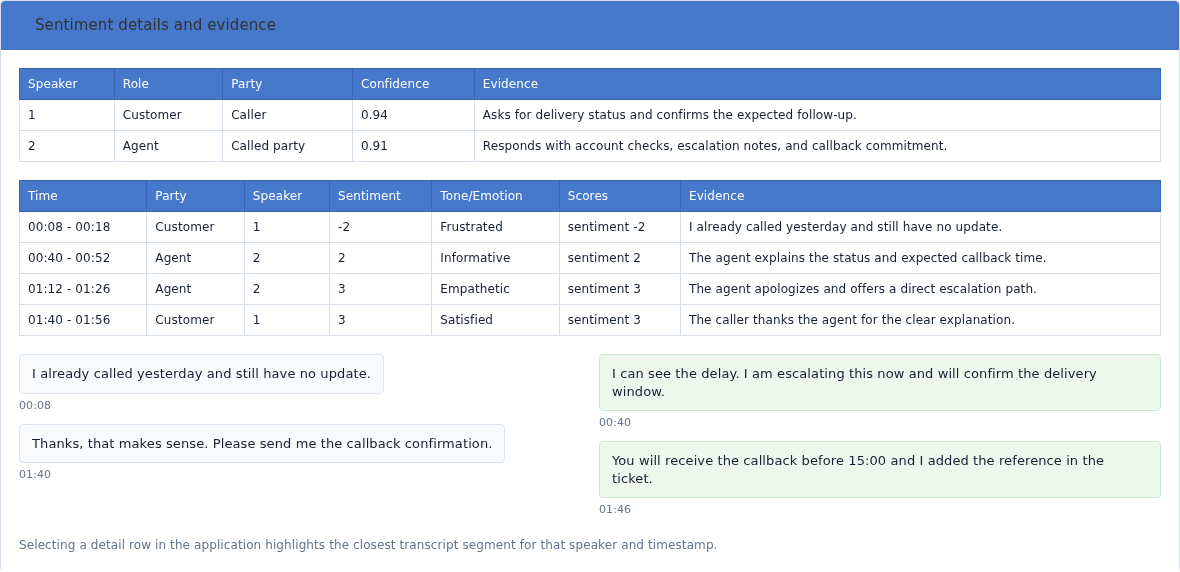
When transcription and sentimental analysis are enabled, recorded calls can expose AI-generated sentiment details from the transcript view. The detailed Call History grid can show the sentiment score and brief analysis, while the transcript page shows the sentiment and tone timeline, speaker-role detection, and evidence rows.

| Element | Meaning |
|---|---|
| Overall score | A single sentiment score returned by the configured AI prompt. The default prompt uses a negative-to-positive scale so supervisors can quickly find calls that need review. |
| Customer sentiment arc | Plots how the customer sentiment changes across the call. This is useful when the call starts negatively but recovers, or when a positive call degrades over time. |
| Agent sentiment and tone | Plots the agent tone across the same timeline. Tone labels such as calm, informative, empathetic, confident, or tense help explain why the call moved in a given direction. |
| Speaker roles | Shows which speaker was identified as customer or agent, the party role, confidence, and the evidence used for the decision. |
| Evidence rows | Shows time range, party, speaker, sentiment score, tone or emotion, and the transcript evidence supporting each point. Selecting a row in the application highlights the closest transcript segment. |
Changing the View
You can change views directly from the Call History page by selecting Simple View or Complete View. The administrator can also choose the default view from Admin > Settings, in the Call History Theming section.
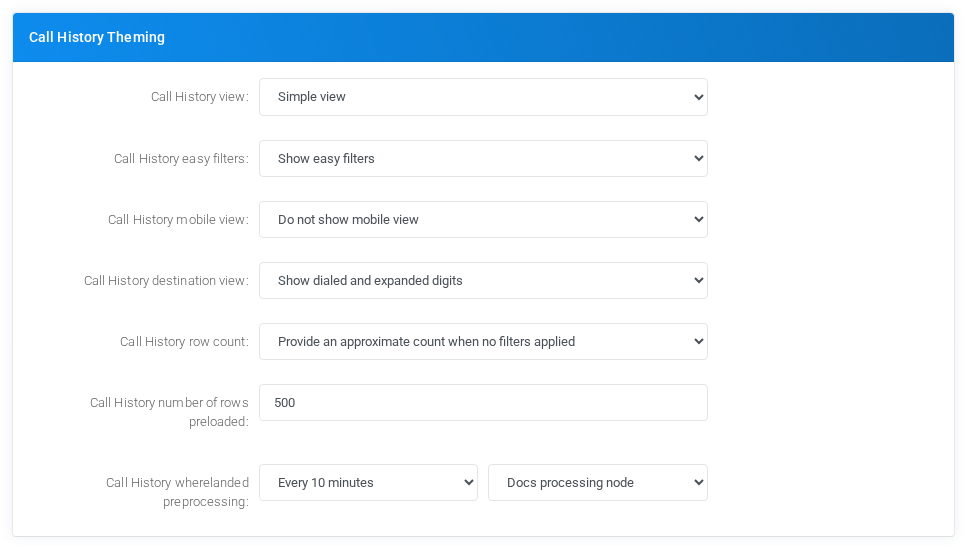
| Setting | Meaning |
|---|---|
| Call History view | Controls the default Call History view. Show all legs opens the full detailed view, Show only relevant entries keeps a compact detailed view, and Simple view opens the summary view by default. |
| Call History easy filters | Shows or hides the top filter form with date, source, destination, and related quick filters. |
| Call History mobile view | Allows MiRTA PBX to open the mobile-optimized call-history view automatically on smartphones. |
| Call History destination view | Controls whether the destination column shows dialed digits, expanded digits, or both. |
| Call History row count | Controls how aggressively the system counts matching rows. Approximate or skipped counts can improve performance on large call-history tables. |
| Call History number of rows preloaded | Sets how many rows are loaded initially when the page opens. |
| Call History wherelanded preprocessing | Schedules preprocessing of where-landed data so the Call History page can open faster when that calculation is expensive. |
Linked Pages and Actions
The following controls can appear in Complete Call History and Simple Call History depending on tenant settings, installed modules, and the permissions of the logged-in administrator.
| Linked page or action | Explanation |
|---|---|
| Complete View / Simple View | Switches between the detailed call-leg grid and the summarized call-history grid. This changes the current view only; the default view is configured in Admin Settings. |
| Call Steps | Opens the chronological call-step view for the selected call. Use it to understand transfers, bridges, queue handling, dial attempts, hangups, and other call events. |
| Recording Player | Opens from recording icons in the grid. It plays available recordings and may offer copy-link, download, delete, or alternate-channel recording controls according to permissions. |
| CSV Export and XLS Export | Exports the current prepared dataset. Filter first, then export, so the downloaded file contains only the calls you intend to review. |
| Blacklist callerid | Adds the selected caller ID to the tenant blacklist with a reason based on the call date. Use it only after confirming the number should be blocked. |
| Call Hold Logs | Opens hold-event history, including extension, start, end, duration, party held, unique ID, and linked ID. Use it to investigate long holds and caller experience. |
| Parked Call Logs | Opens parking history, including extension, parking space, parking lot, duration, party, and unique ID. Use it to verify parking-lot workflows. |
| Scheduled Call Logs | Opens scheduled-call history, including the target number, not-before time, attempts, confirmation, DTMF received, status, and sender. |
| AI Logs | Opens generative AI call logs with caller ID, start and end time, duration, talk time, token counts, and unique ID. Use it to audit AI-assisted call handling. |
| Voice Service Logs | Opens voice-service usage logs for text-to-speech, speech-to-text, and similar services. It shows provider, unique ID, words, duration, characters, tokens, and language. |
| Call Privacy/Screening | Opens the privacy and screening status page for caller IDs. Administrators with permission can review or adjust the action assigned to screened callers. |
| AI Processing | Opens the queue of transcript, summary, and sentiment processing jobs, including action, unique ID, first check, last check, note, and notification email. |
| Transcribe call | Schedules transcription, summarization, or sentiment analysis for selected recorded calls. The dialog can also send a notification email when processing is complete. |
| Alarms Received | Appears when alarm controls are enabled. It opens the received-alarm history related to alarm receiver handling. |
Operational Notes
- Use Complete Call History for troubleshooting and Simple Call History for quick operational lookup.
- Filter by date and tenant before exporting or scheduling actions on calls.
- Recording, export, deletion, billing, transcription, and AI actions depend on permissions and enabled features.
- When the grid feels slow on large deployments, review the Call History row count, preloaded rows, easy filters, and where-landed preprocessing settings.
No comments to display
No comments to display