
Create a Media File with Text to Speech
Use Create a Media File with Text to Speech when you want MiRTA PBX to generate a prompt from written text instead of uploading a prerecorded audio file.
Open the form
| Step | Action |
|---|---|
| 1 | Select the correct tenant in the top bar. |
| 2 | Open Configuration > Media Files. |
| 3 | Select New Media File. |
| 4 | Complete the Information, text-to-speech, and transformation blocks, then select Save. |
Information

This block identifies the generated prompt in lists and destination selectors.
| Field | Description |
|---|---|
| Name | Short display name for the generated prompt. The example uses Docs Demo IVR Menu TTS. |
| Description | Administrative note for the generated prompt. Use it to describe the IVR, queue, or call flow that will use the prompt. |
Text to Speech
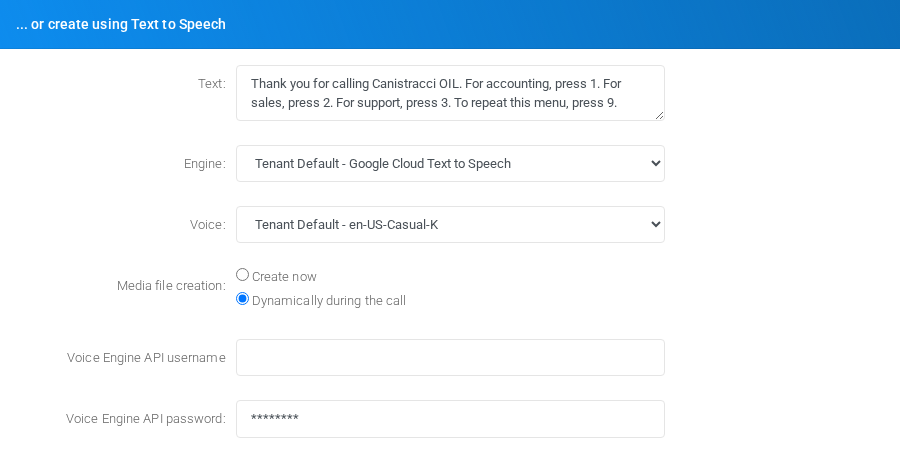
This block defines the script, voice engine, voice, and creation mode.
| Field or option | Description |
|---|---|
| Text | Prompt text to synthesize. The field supports runtime variables such as ${INCOMINGDID} and ${CALLERID(num)}. When the media file is generated dynamically during the call, any Asterisk channel variable or user-defined variable available in the call can be used in this format. Surround a number with // markers when it should be read digit by digit. |
| Engine | Voice engine to use. Leave Tenant Default unless this prompt needs a specific configured engine. |
| Voice | Voice to use for the generated prompt. Leave Tenant Default unless the prompt requires a specific language, dialect, or voice. |
| Create now | Generates and stores the audio when you save the media file. Use this for fixed prompts that do not need runtime variables. |
| Dynamically during the call | Stores the text and voice settings, then generates the prompt during call execution. Use this when the prompt includes Asterisk channel variables, user-defined variables, or other values that must be read from the active call. |
| Region | Appears for engines that require a regional endpoint, such as Amazon AWS Polly. |
| Voice Engine API username | Optional per-prompt API username when the selected engine requires credentials. Prefer tenant or global defaults when possible. |
| Voice Engine API password | Optional per-prompt API password. Treat it as sensitive. |
Example Text
For an IVR selection menu, use clear wording and keep the option list short:
Thank you for calling Canistracci OIL. For accounting, press 1. For sales, press 2. For support, press 3. To repeat this menu, press 9.Dynamic prompts can include call variables, for example:
We received your call from ${CALLERID(num)} for ${INCOMINGDID}. Your support case is ${CASEID}.Upload/Create Transformations
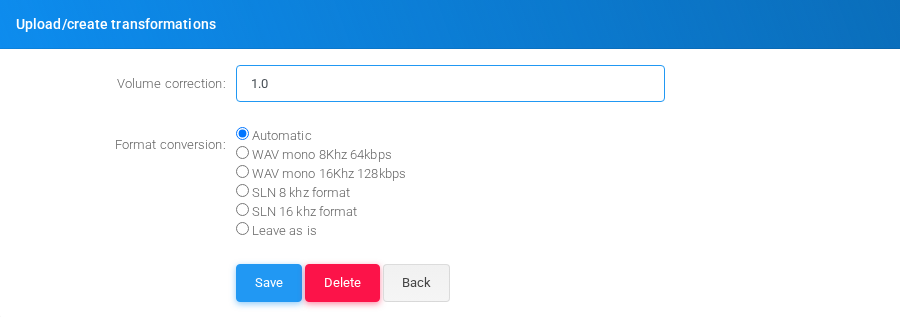
This block controls volume and format conversion for generated audio. It is especially relevant when using Create now, because the media file is synthesized and stored immediately.
| Field or option | Description |
|---|---|
| Volume correction | Applies a linear gain adjustment. Use 1.0 for no change. Values below 1 reduce volume; values above 1 increase it. |
| Automatic | Lets MiRTA PBX choose the stored format. |
| WAV mono 8Khz 64kbps | Converts the generated audio to an 8 kHz mono WAV format suitable for narrowband telephony prompts. |
| WAV mono 16Khz 128kbps | Converts the generated audio to a 16 kHz mono WAV format. |
| SLN 8 khz format | Converts the generated audio to 8 kHz signed linear audio. |
| SLN 16 khz format | Converts the generated audio to 16 kHz signed linear audio. |
| Leave as is | Stores the generated file without conversion, except for any requested volume correction. |
Editing
To edit a text-to-speech media file, open it from the Media Files list, update the text, engine, voice, creation mode, or transformation options, and select Save. If the prompt is used by an IVR, queue, or other call flow, test the call flow after saving.
No comments to display
No comments to display