
Create and Edit Phones
Use this page when creating a new phone or editing an existing phone from Configuration > Phones.
The form screenshots below are separated by block where the application exposes separate sections. Complete the required values, review routing or destination references, and save the record.
Add and edit form
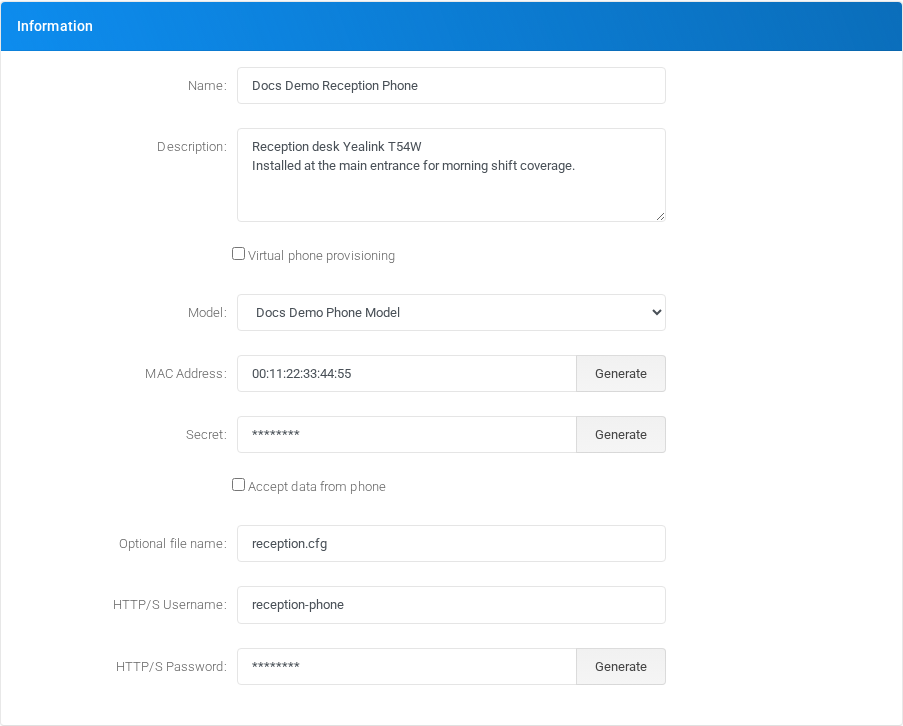
Main fields
| Field | Description |
|---|---|
| Name: | Display name used in lists and references. |
| Description: | Free-form notes about the phone, such as physical location, assigned user, install details, or operational comments. This value is informational only and is not used for provisioning generation or call processing. |
| Virtual phone provisioning | Object setting shown by the form. |
| Model: | Object setting shown by the form. |
| MAC Address: | Object setting shown by the form. |
| Secret: | Credential or PIN value. Treat it as sensitive. |
| Accept data from phone | Object setting shown by the form. |
| Optional file name: | Display name used in lists and references. |
| HTTP/S Username: | Display name used in lists and references. |
| HTTP/S Password: | Credential or PIN value. Treat it as sensitive. |
| Line 0: | Object setting shown by the form. |
| Line 1: | Object setting shown by the form. |
| Line 2: | Object setting shown by the form. |
| Line 3: | Object setting shown by the form. |
| Line 4: | Object setting shown by the form. |
| Line 5: | Object setting shown by the form. |
Saving and deleting
| Task | How to do it |
|---|---|
| Create | Select the new action from the Phones list, fill the required fields, and select Save. |
| Edit | Open the existing phone, update the needed fields, and select Save. |
| Delete | Before deleting a phone, check call-flow, destination, schedule, report, provisioning, or integration references. Use the row delete action or the form delete action when available, then confirm. |
No comments to display
No comments to display