
Upload a Media File
Use Upload a Media File when you already have an audio prompt and want MiRTA PBX to store it for IVRs, queues, DISAs, announcements, or other call flows.
Open the form
| Step | Action |
|---|---|
| 1 | Select the correct tenant in the top bar. |
| 2 | Open Configuration > Media Files. |
| 3 | Select New Media File. |
| 4 | Complete the Information, upload, and transformation blocks, then select Save. |
Information
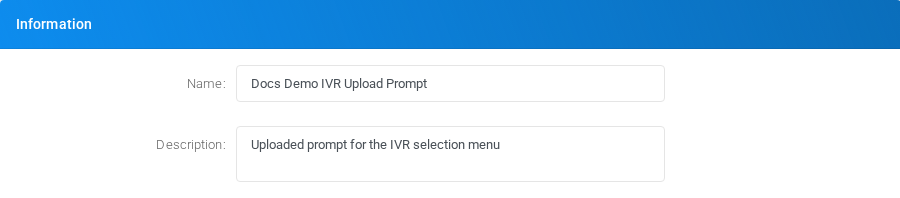
This block identifies the prompt in lists and destination selectors.
| Field | Description |
|---|---|
| Name | Short display name for the media file. Use a name that describes where the prompt is used, such as Docs Demo IVR Upload Prompt. |
| Description | Administrative note for the prompt. Use it to record the script purpose, call flow, or owner. |
Upload Recording

This block selects the local audio file to upload.
| Field | Description |
|---|---|
| File | Select the audio file to store. Use a clear filename, such as ivr-selection-upload.wav. MiRTA PBX can process common prompt formats including WAV, MP3, M4A, and WMA. |
Upload/Create Transformations
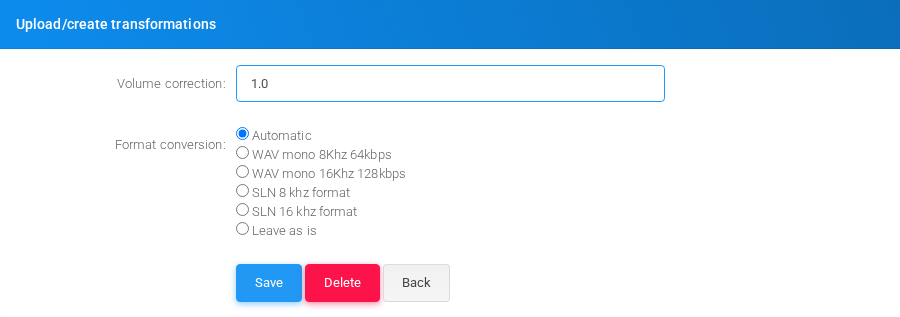
This block controls audio normalization and format conversion when the media file is saved.
| Field or option | Description |
|---|---|
| Volume correction | Applies a linear gain adjustment. Use 1.0 for no change. Values below 1 reduce volume; values above 1 increase it. |
| Automatic | Lets MiRTA PBX choose the stored format based on the uploaded source. |
| WAV mono 8Khz 64kbps | Converts the prompt to an 8 kHz mono WAV format suitable for narrowband telephony prompts. |
| WAV mono 16Khz 128kbps | Converts the prompt to a 16 kHz mono WAV format. |
| SLN 8 khz format | Converts the prompt to 8 kHz signed linear audio. |
| SLN 16 khz format | Converts the prompt to 16 kHz signed linear audio. |
| Leave as is | Stores the uploaded file format without conversion, except for any requested volume correction. |
Example
| Field | Example value |
|---|---|
| Name | Docs Demo IVR Upload Prompt |
| Description | Uploaded prompt for the IVR selection menu |
| File | ivr-selection-upload.wav |
| Volume correction | 1.0 |
| Format conversion | Automatic |
Editing
To edit an uploaded media file, open it from the Media Files list, adjust the name or description, optionally upload a replacement file, review the transformation options, and select Save. If the prompt is already used in a call flow, test that flow after replacing the audio.
No comments to display
No comments to display