
Create and Edit Flows and Variables
Use this page when creating a new flow or variable or editing an existing flow or variable from Configuration > Flows and Variables.
The form screenshots below are separated by block where the application exposes separate sections. Complete the required values, review routing or destination references, and save the record.
Form sections
| Section | Description |
|---|---|
| Information | Core identity and routing fields for the object. |
| Settings | Object-specific settings that change runtime behavior. |
| Monitoring | Status monitoring and BLF-related options. |
| Current State | Current value or state controls shown for the object. |
Information
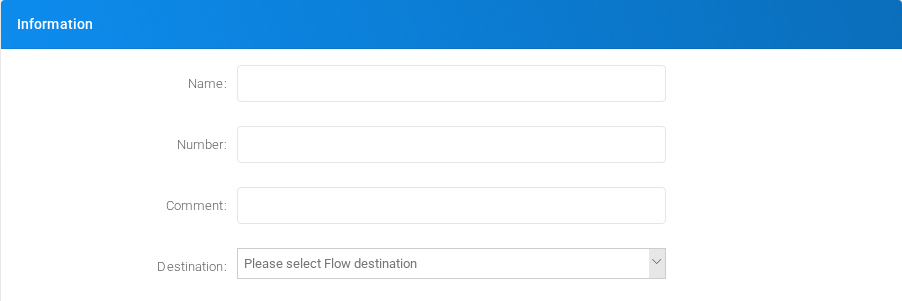
Core identity and routing fields for the object.
Settings
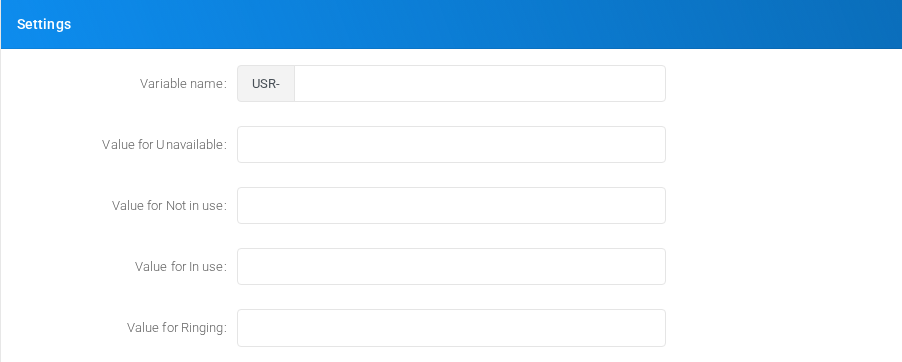
Object-specific settings that change runtime behavior.
Monitoring

Status monitoring and BLF-related options.
Current State
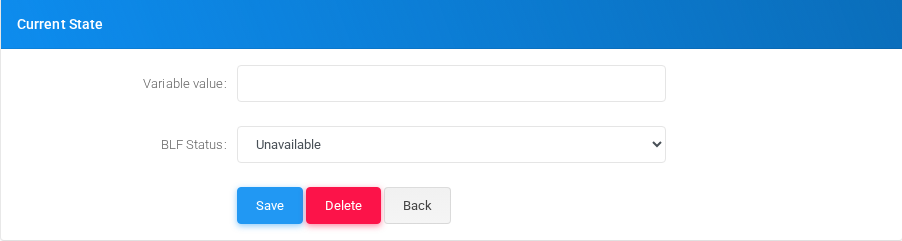
Current value or state controls shown for the object.
Main fields
| Field | Description |
|---|---|
| Name: | Display name used in lists and references. |
| Number: | Dialed value, identifier, or matching value used by the PBX. |
| Comment: | Administrative note shown in lists and reports. |
| Variable name: | Display name used in lists and references. |
| Value for Unavailable: | Object setting shown by the form. |
| Value for Not in use: | Object setting shown by the form. |
| Value for In use: | Object setting shown by the form. |
| Value for Ringing: | Object setting shown by the form. |
| Monitor type: | Mode selector that changes the behavior of the object. |
| Queue: | Object setting shown by the form. |
| Extension to monitor: | Target or routing selection used when the object sends a call or message onward. |
| DID to monitor: | Object setting shown by the form. |
| Variable value: | Object setting shown by the form. |
| BLF Status: | Mode selector that changes the behavior of the object. |
Saving and deleting
| Task | How to do it |
|---|---|
| Create | Select the new action from the Flows and Variables list, fill the required fields, and select Save. |
| Edit | Open the existing flow or variable, update the needed fields, and select Save. |
| Delete | Before deleting a flow or variable, check call-flow, destination, schedule, report, provisioning, or integration references. Use the row delete action or the form delete action when available, then confirm. |
No comments to display
No comments to display