
Date - exact match
The Date - exact match type matches one or more exact dates or date/time values.
Open Configuration > Conditions, select New Condition, enter a name, choose Date - exact match in the Type field, complete the type-specific fields, and select Save.
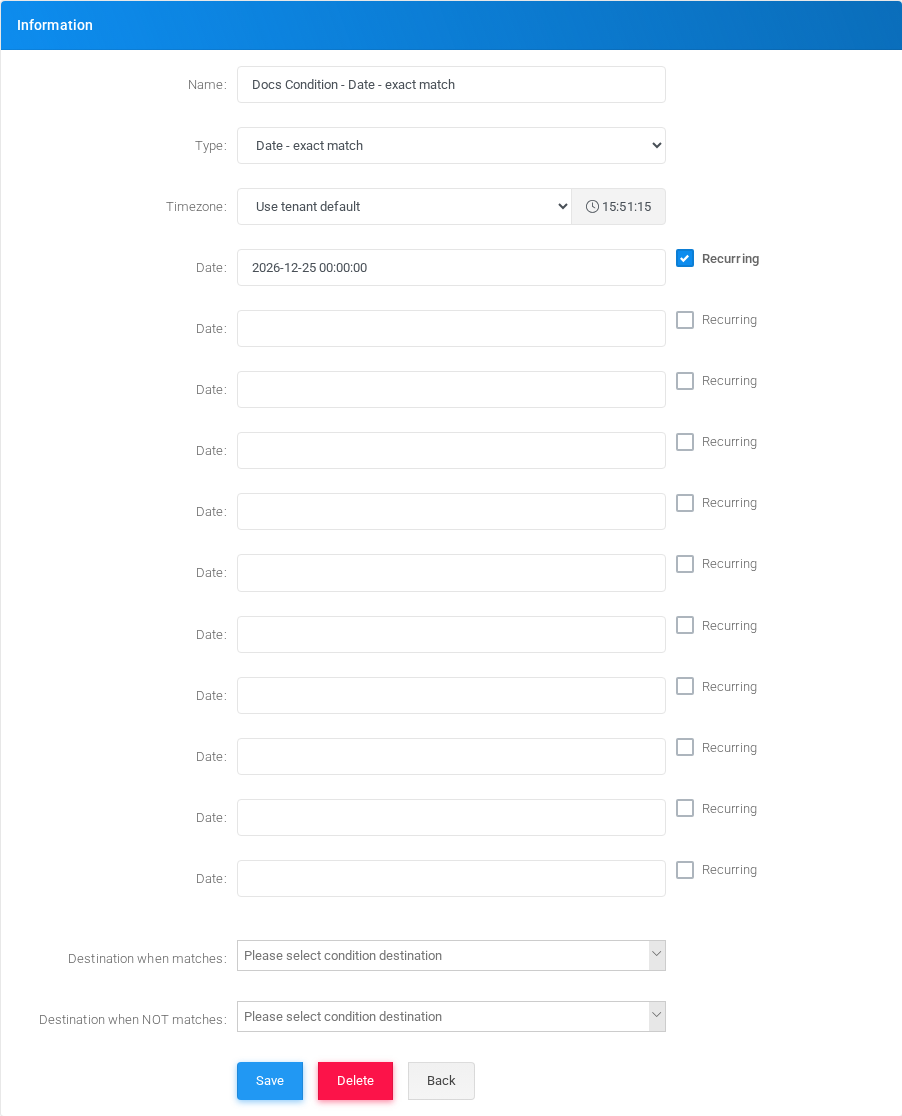
Fields
| Field or option | Description |
|---|---|
| Name | Display name used in condition lists and selectors. |
| Type | Select Date - exact match. |
| Timezone | Timezone used to evaluate the date. |
| Date | Exact date or date/time value to match. |
| Recurring | Treats the date as recurring instead of a one-time date. |
Example
| Field | Example value |
|---|---|
| Name | Docs Condition - Date - Exact Match |
| Date | 2026-12-25 00:00:00 |
Destinations
For tenant conditions, select the destinations that should run when the condition matches and when it does not match. Global conditions are referenced by tenant-level Use a Global Condition records.
Editing and deleting
To edit this condition, open Docs Condition - Date - exact match from the Conditions list, adjust the fields, and select Save. Before deleting it, check IVRs, schedules, routes, feature codes, and other call-flow objects that may reference it.
No comments to display
No comments to display